
Create Task
Roadmap for macOS makes task creation very simple. You can efficiently create tasks (along with sections and rows) using intuitive gestures.
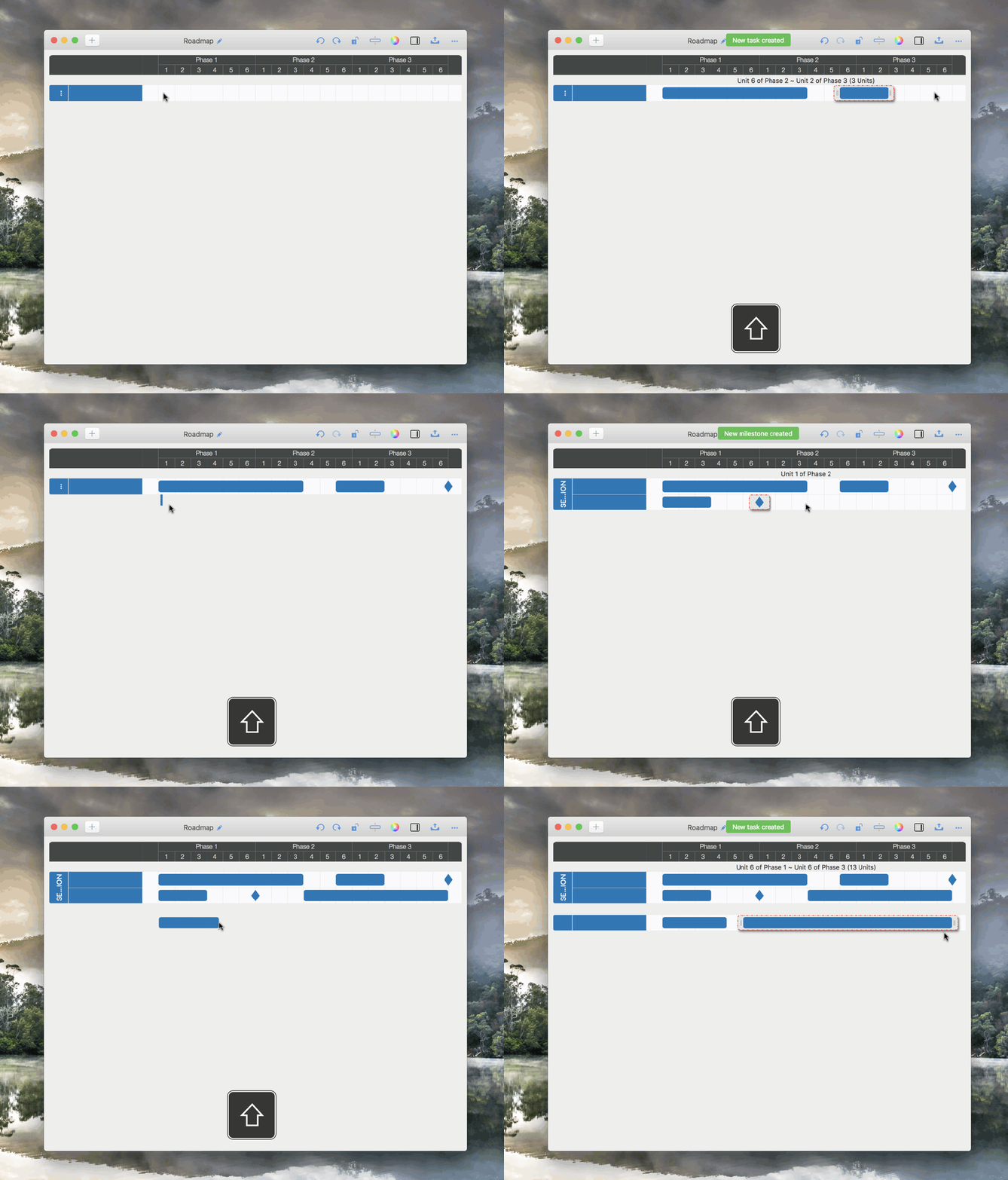
Create a new task only
- ⇧ + Mouse Horizontally Moving (“Shift” key + “Mouse” moving horizontally) to create a new TASK.
- ⇧ + Mouse Vertically Moving (“Shift” key + “Mouse” moving horizontally) to create a new MILESTONE.
Create a new task AND a new Section or a new Row together
- Creating a task slightly below a section also creates a new row at the end of that section.
- Creating a task slightly beyond the last section also creates a new section.
Move Task
-
Gesture: Move a selected task directly to a new position

-
Keyboard Shortcut: ⇧ ←,→,↓,↑ (Shift + Arrow Key)

Change Task Duration
-
Gesture:

-
Keyboard Shortcut:
⇧ + ("Shift" + "+") - Increase task duration by one cell, if possible.
⇧ - ("Shift" + "-") - Decrease task duration by one cell, if possible.
Copy Task
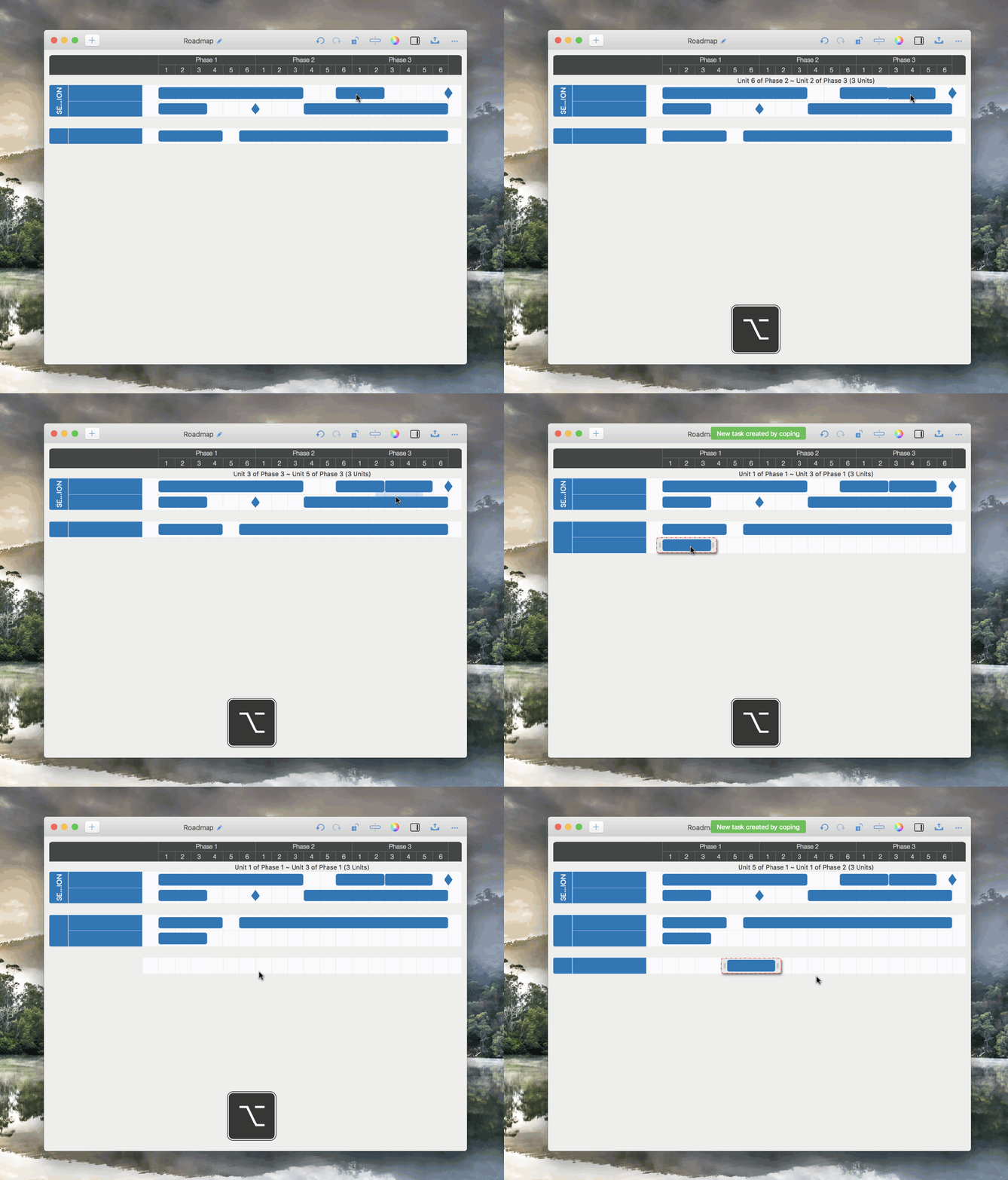
- ⌥ + Mouse Moving (“Option” key + “Mouse moving”) to copy task.
- You can also create a section and row at the same time when copying a task.
Split Task and Combine Tasks
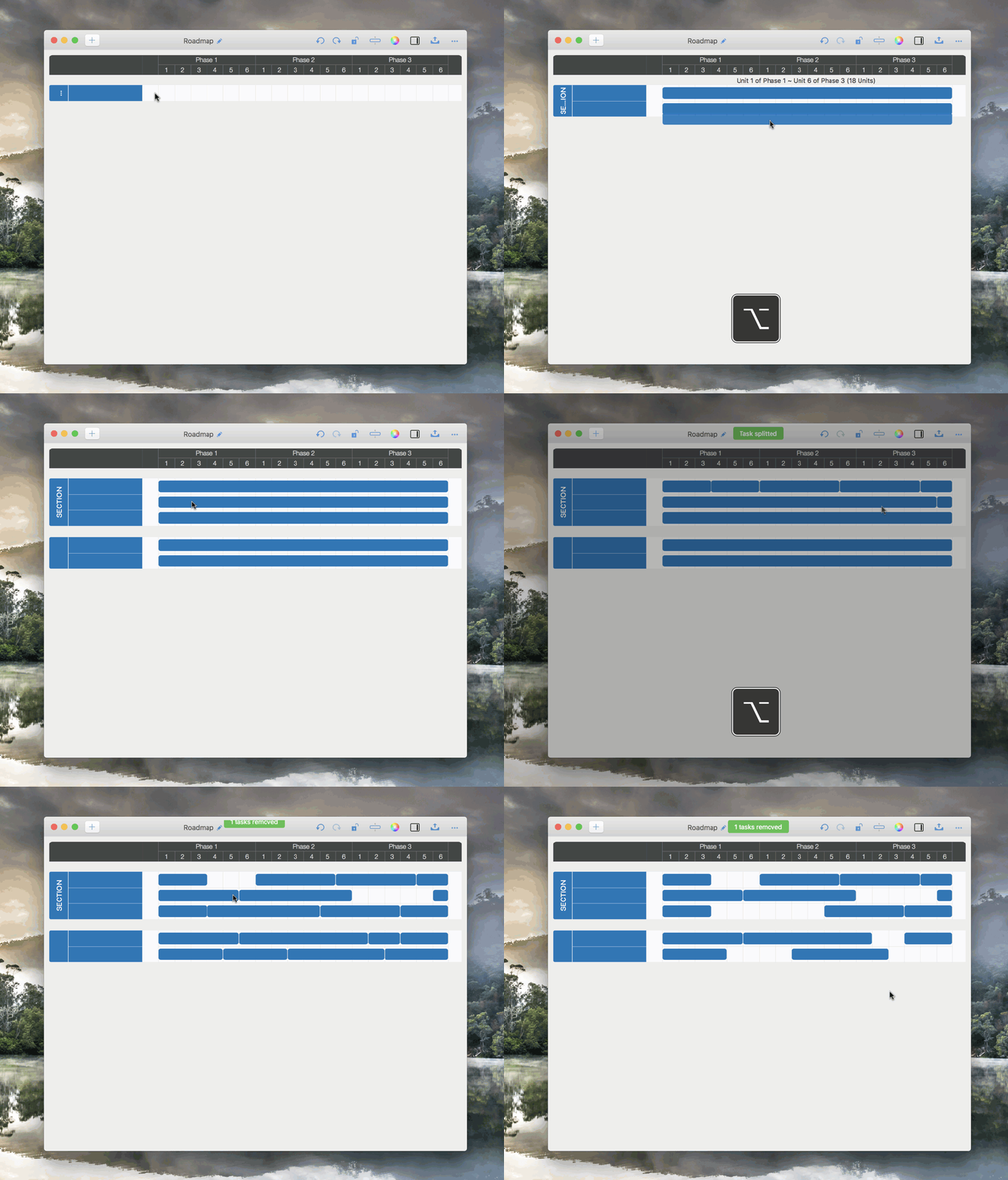
Use ⌥ + Mouse-Click (“Option” key + mouse click) to split a task and combine tasks (if possible).
Update Title of Sections, Rows and Tasks
Double-click a section, row, or task to edit its title directly.
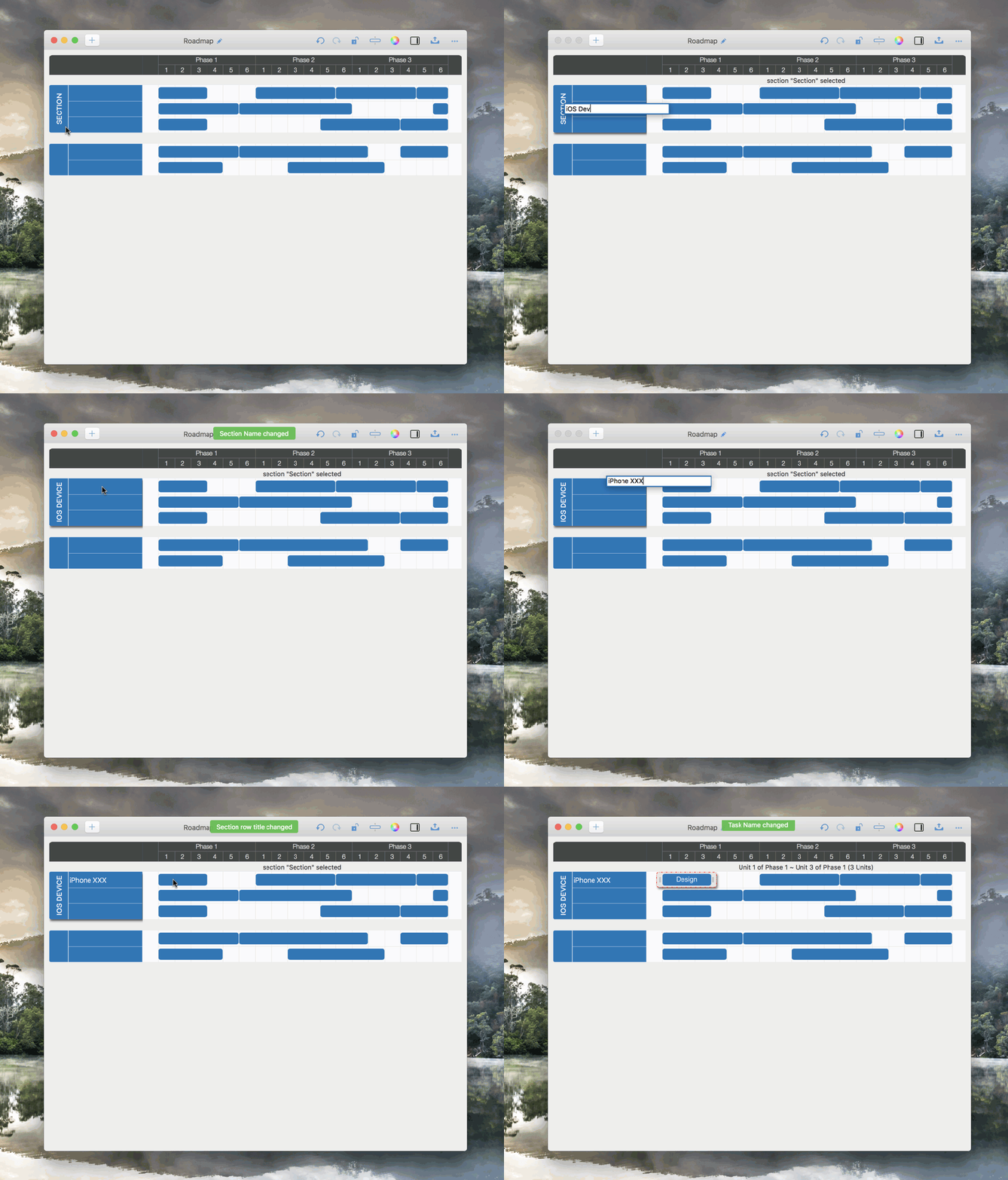
- Double-click a task to edit the task name directly.
- Double-click section part in a section lane to edit the section title.
- Double-click row part in a section lane to edit the row title directly.
The Properties of Sections and Tasks
Maintain properties in the updating panel.
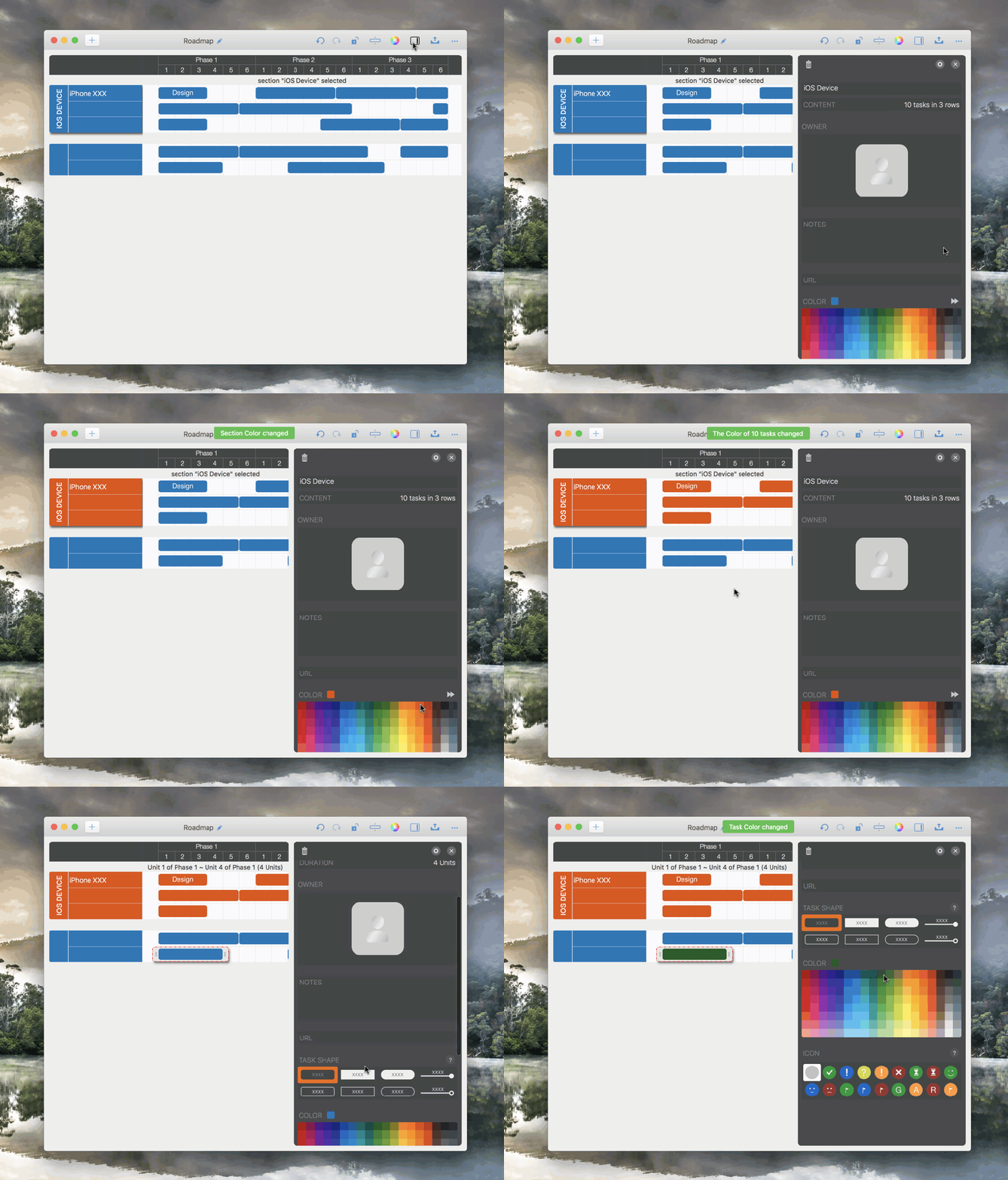
- In addition to task fields with predefined purposes (such as title, notes, date, owner, and cost), there are also fields without predefined purposes, including 6 single-line text fields, 2 multi-line fields, and 3 URL fields.
- Click the setting button at the top of updating panel to customize the visibility and title of the task fields.
Remove Task
- If a task is selected, press the "Delete" key to remove it directly.
- Or use the "Remove" option in the context menu (right-click a taskbar).
Remove Section
- If a section is selected, press the "Delete" key to remove it directly.
- Or use the "Remove" option in the context menu (right-click a section lane).
Remove Row
- Use the "Remove" option in the context menu (right-click a row).
Move Section / Row by gesture
-
⌘ + Mouse-Moving (“Command” key + “Mouse Moving”) to move the selected Section/Row Up or Down.
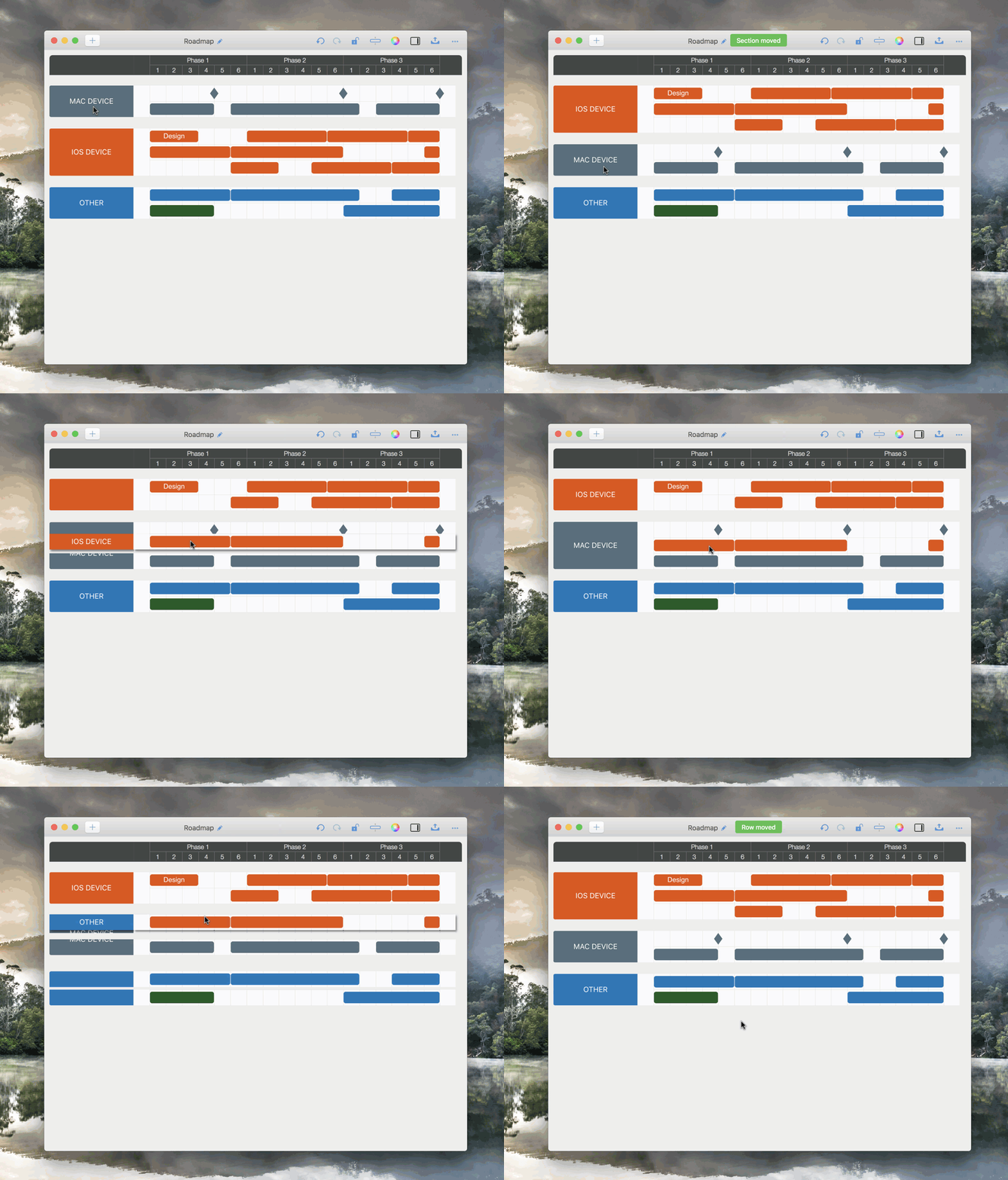
- If a section lane is being selected, ⌘ + ↓/↑ (“Command” key + “Down” or "Up" key) to move the selected Section Up or Down.
Context Menus
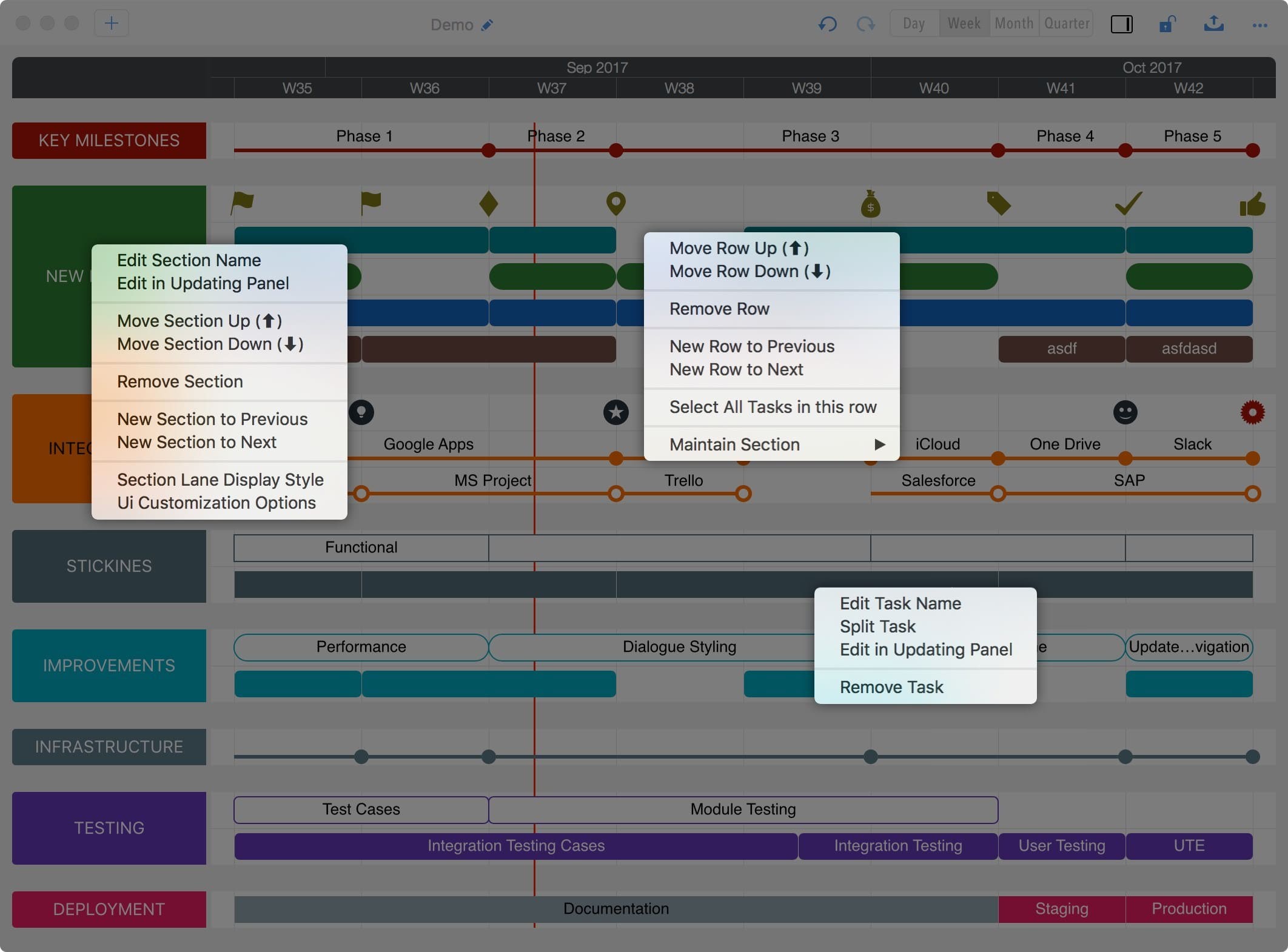
Right-click on a Section, a Row and a Task to display the related context menu.
Documents Operations
Roadmap Properties
Timeline
Section, Row, and Task Maintenance
- Section, Row, and Task
- Task Fields
- Section, Row, and Task Maintenance
Keyboard Shortcuts
Customization
Synchronization
Integrations
Others