
Timeline Customization
Timeline Customization
The roadmap timeline is fully customizable, and "Roadmap for macOS" makes customizing the timeline straightforward and flexible.
Customizing the timeline for product roadmaps and high-level project plans based on business needs is simple and efficient. Powerful customization extends the use of this app considerably, such as generating meeting agendas.
Timeline Templates
When an empty document is opened, the app guides us through selecting a template to customize the timeline.
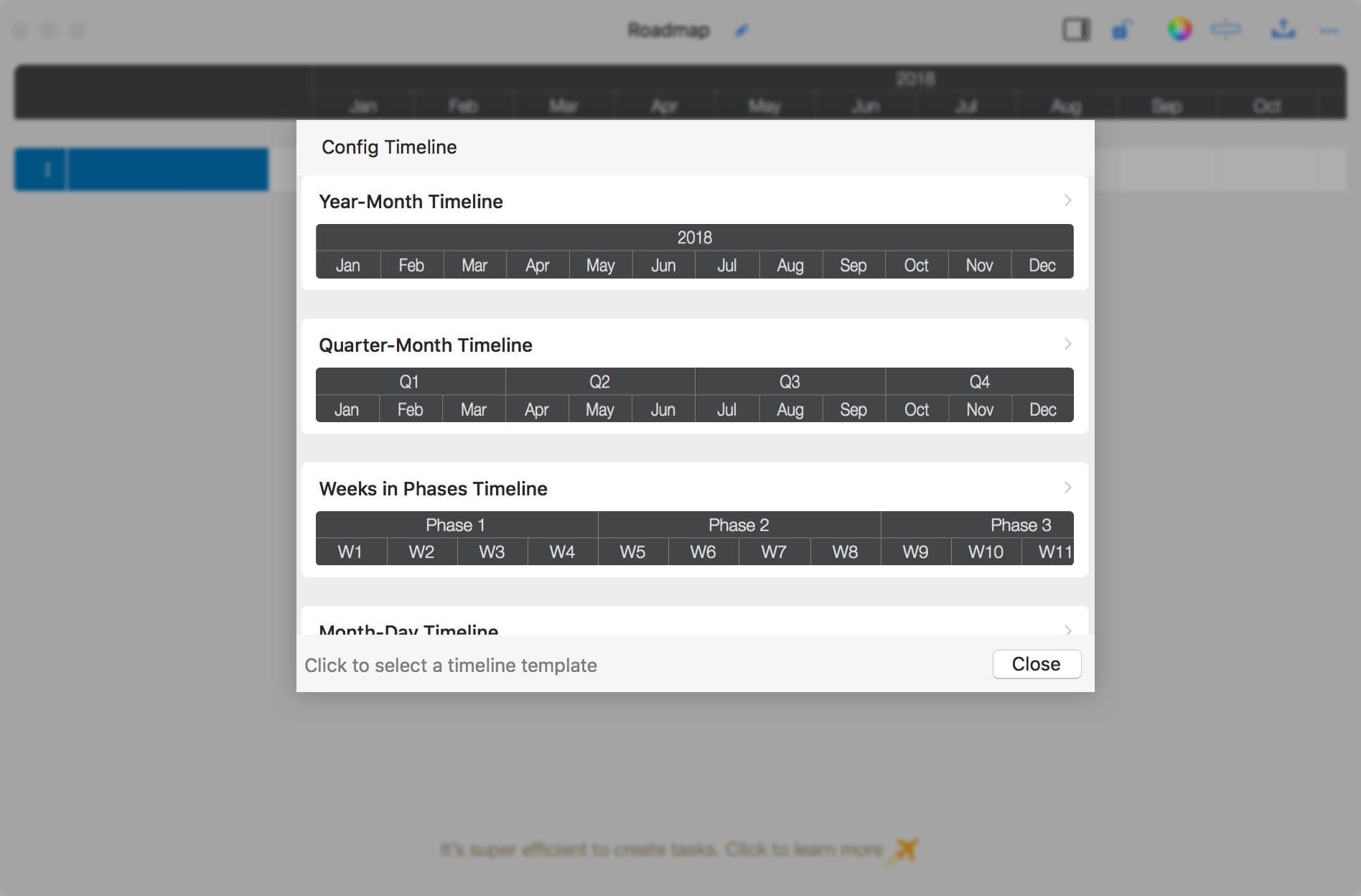
Update cells directly
Batch Update Titles using Formula
We can initialize the timeline using a text formula to efficiently customize the number of timeline cells and their titles.
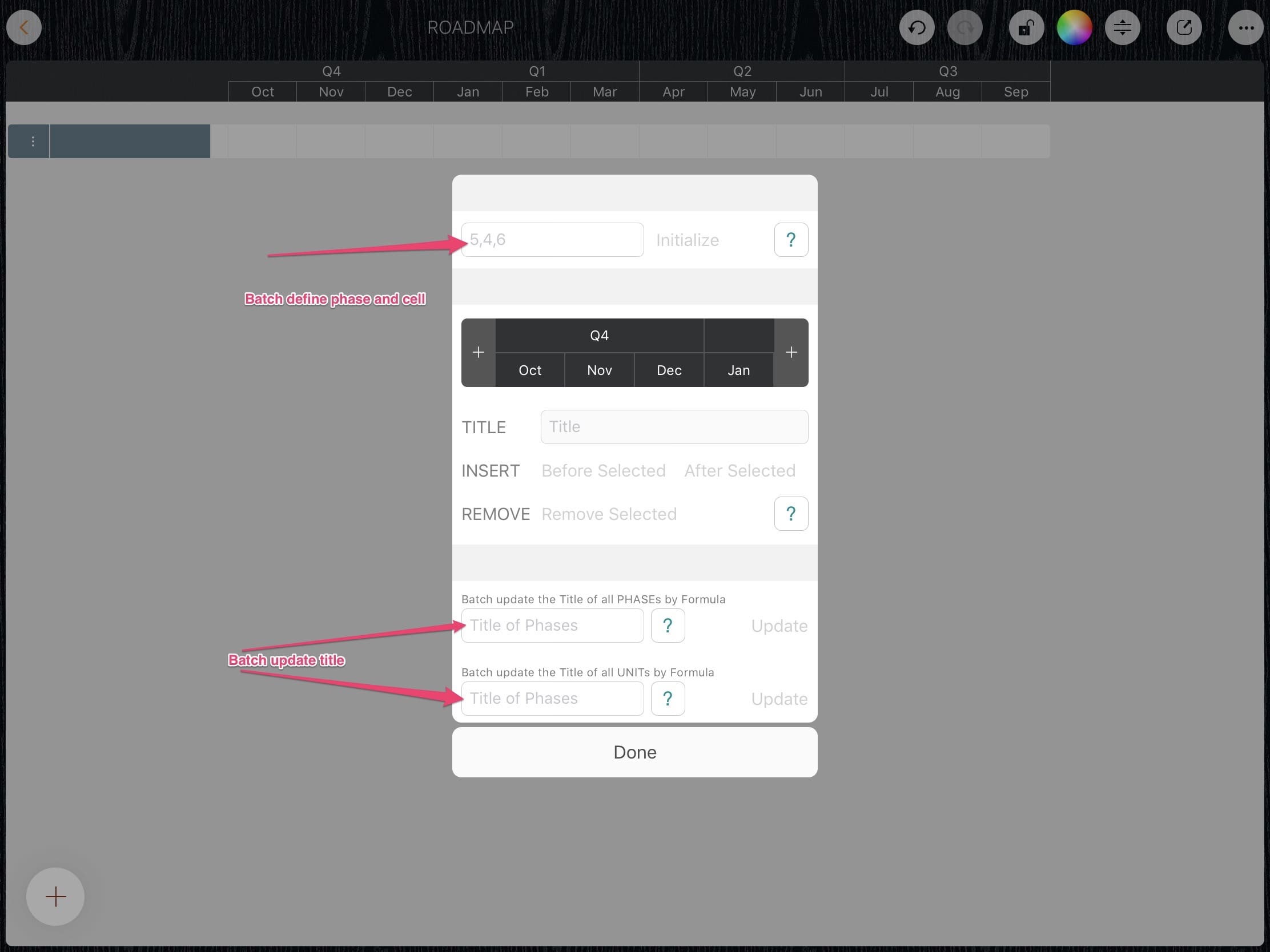
Following are some examples.
1. Three phases, the cells in each phase are different

We are creating a timeline with 3 phases: the first phase includes 5 weeks, the second includes 6 weeks, and the last includes 3 weeks.
“5, 6, 3” – Create a timeline with 3 phases.

“W{i}” – Update the titles of all cells.

2. Four sprints and 10 days in each sprint.

We are creating a timeline with 4 sprints and 10 days in each sprint.
“10,10,10,10” – Create timeline with 4 phases and 10 cells in each phase.

“Sprint {p}” – Update the title of all the phases.

“#{i}” – Update the title of all the cells.

3. (advanced example) A seminar with 3 days, working time from 8:00 to 15:00.

“8,8,8" – Create timeline with 3 phases and 8 cells in each phase

“Day {S p}” – Update the title of all the phases.

“{00 p + 7}:{00 i * 15 - 15}” – Update the title of all the cells.

4. (advanced example) A six-hour meeting starting at 8:00, 15 minutes per cell.

“4,4,4,4,4,4” – Create a timeline with 6 phases and 4 cells in each phase.

“Hour {p + 7}” – Update the title of all the phases.

“{00 p + 7}:{00 i * 15 - 15}” – Update the title of all the cells.
