Task creating by gestures
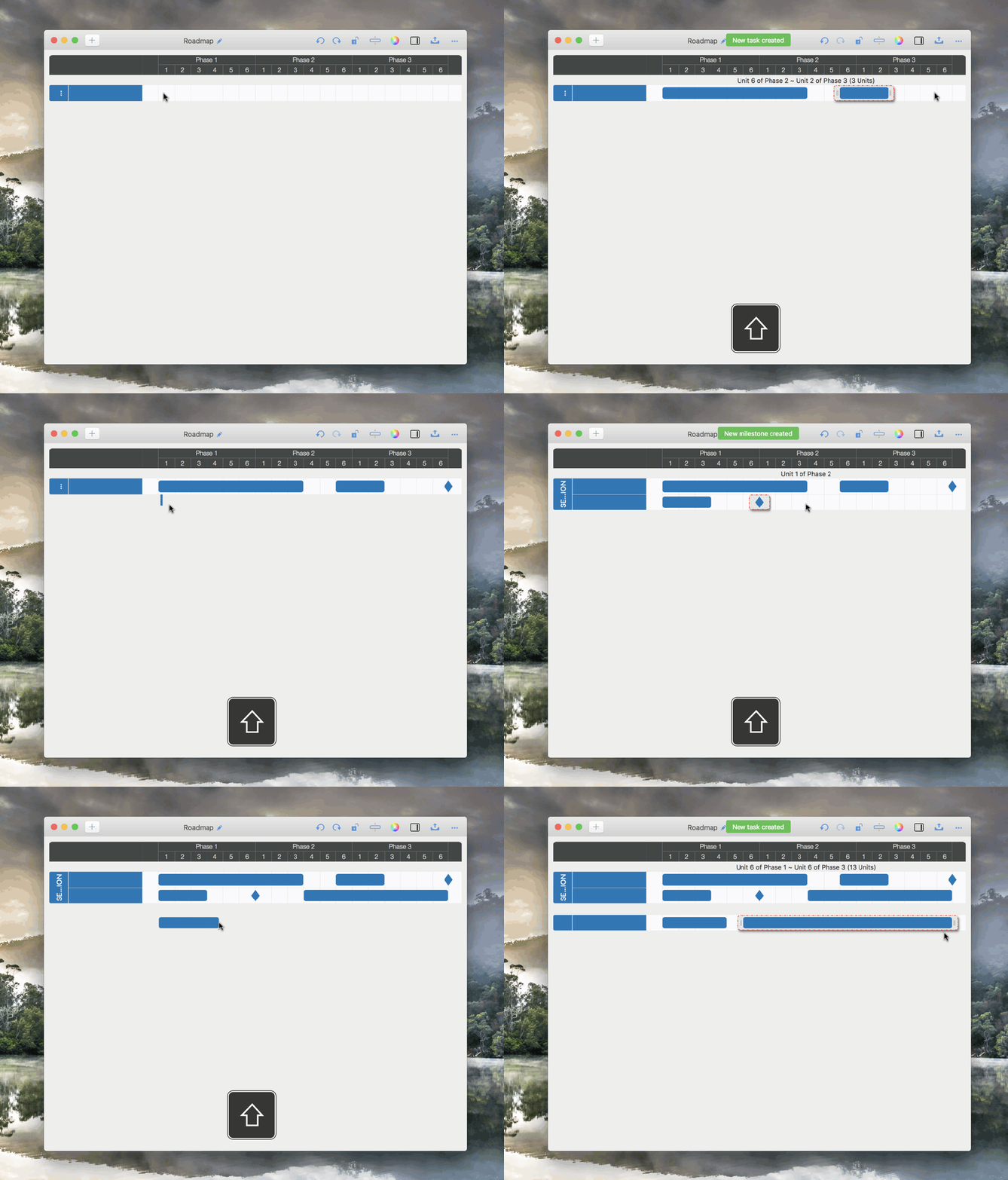
Roadmap for macOS makes task creation straightforward. You can efficiently create tasks (and sections/rows together) using intuitive gestures.
Create a new task only.
-
⇧ + Mouse Horizontally Moving ("Shift” key + "Mouse” moving horizontally) to create a new TASK.
-
⇧ + Mouse Vertically Moving ("Shift” key + "Mouse” moving horizontally) to create a new MILESTONE.
Create a new task AND a new Section or a new Row together
-
Creating a new task at the position a little below a section will also create a new row at the bottom of the section.
-
Creating a new task a little far from the last section will also create a new section.
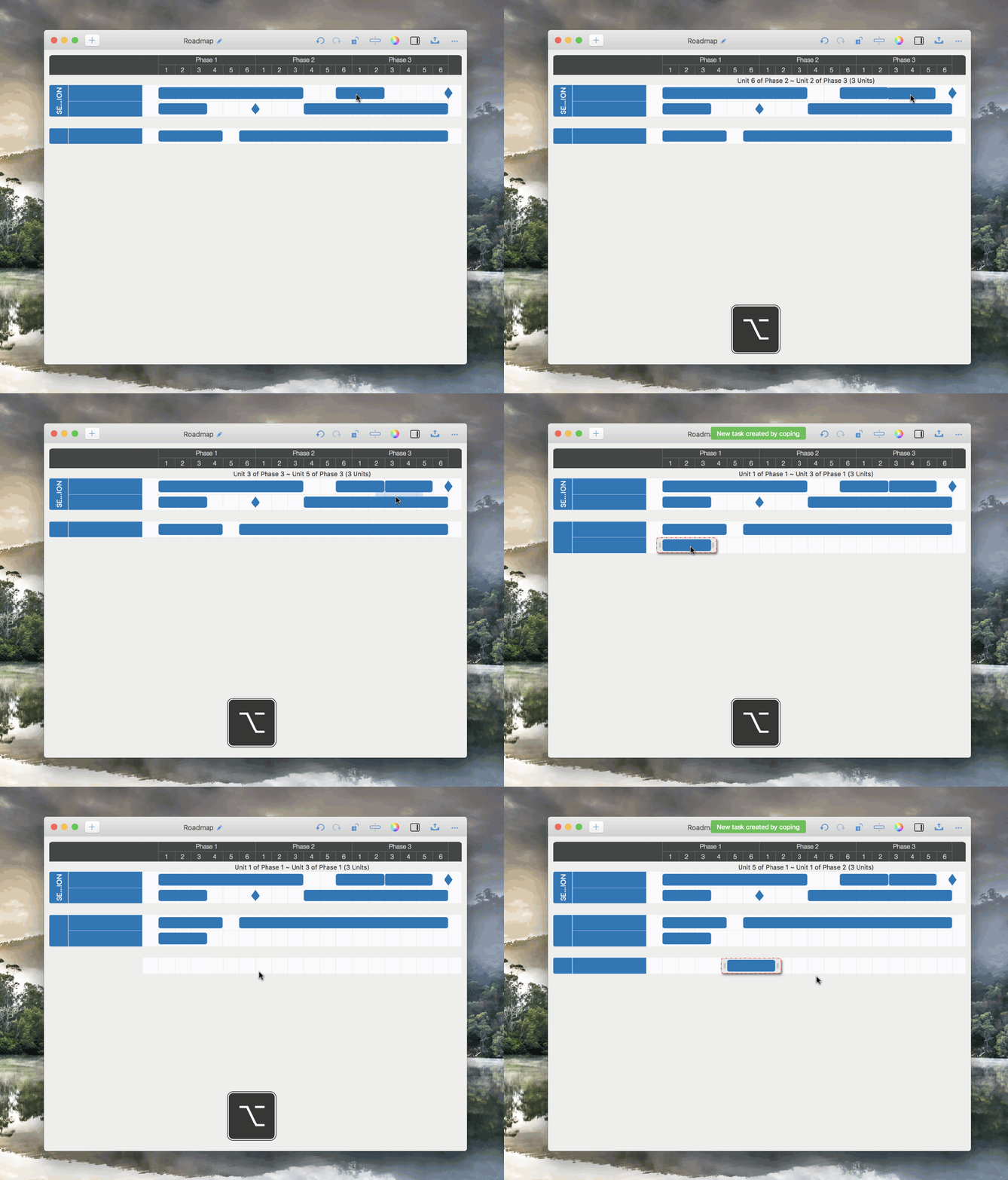
Roadmap for macOS supports copying tasks with mouse gestures.
-
⌥ + Mouse Moving ("Option” key + "Mouse moving”) to copy task.
-
It also supports creating a section or a row simultaneously when copying to create a new task.
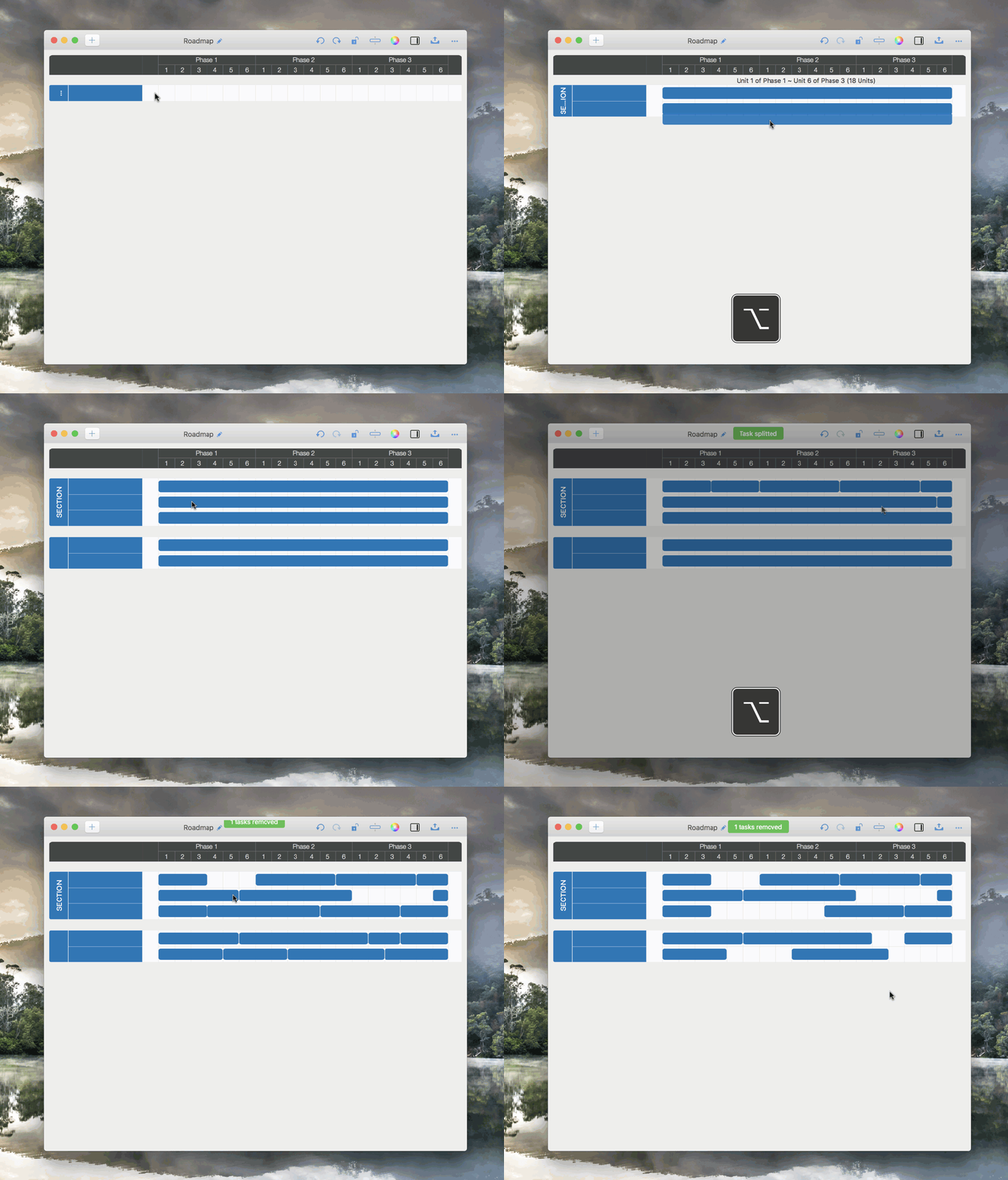
"Splitting Task" may be the more intuitive and efficient approach to create new tasks.
We strongly recommend trying the approach below to create a roadmap in just minutes.
-
⌥ + Mouse-Clicking ("Option” keys + "Mouse-clicking”) to split the task and combine tasks (if possible).
-
"Delete” Key to remove the selected task.
The title of Sections, Rows, and Tasks
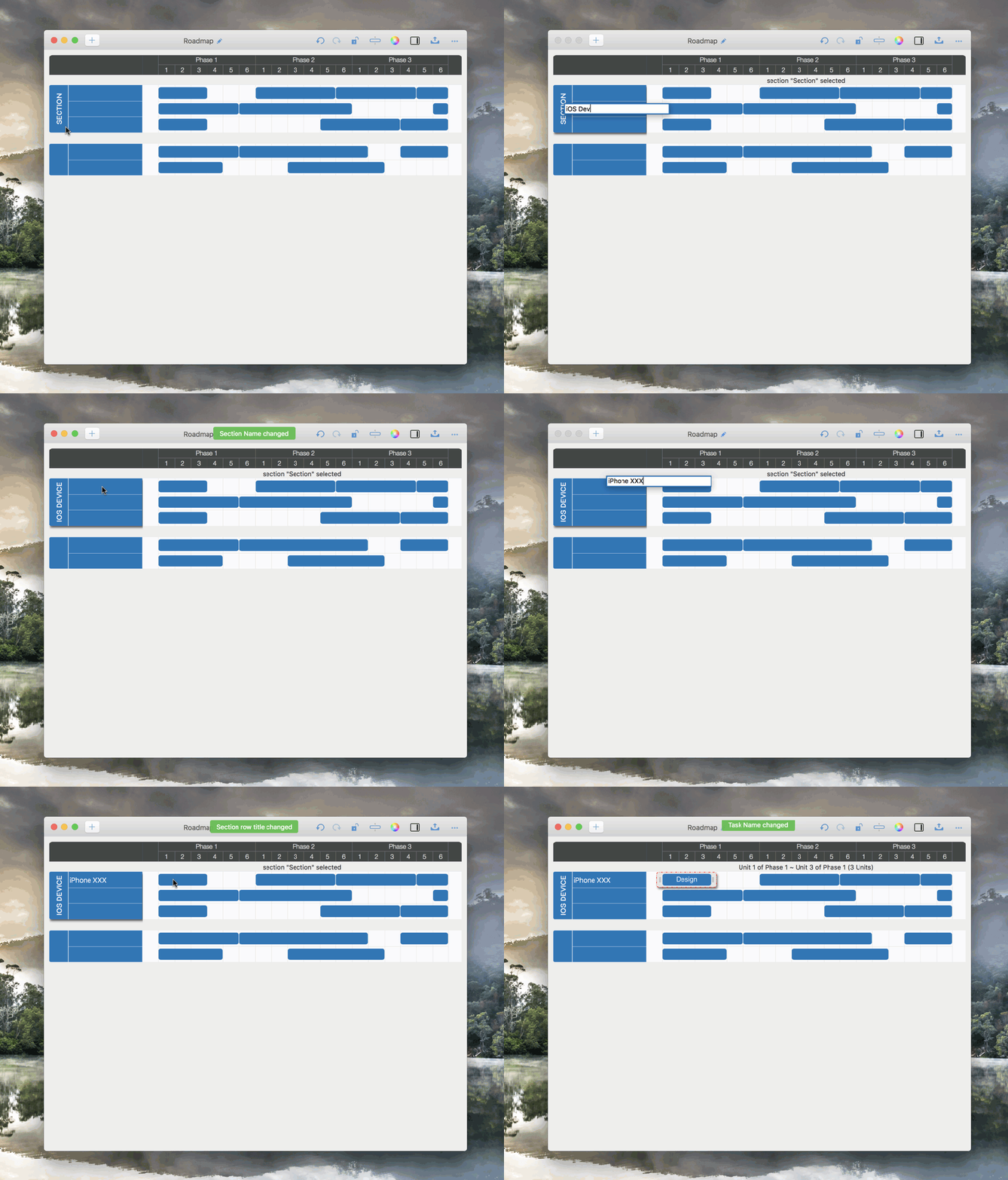
Double-click on a section, on a row, or on a task to edit the title directly
-
Double-click a task to edit the task name directly.
-
"Return" key to edit the name of the selected task.
-
Double-click the section part in a section lane to edit the section title.
-
Double-click row part in a section lane to edit the row title directly.
The Properties of Sections and Tasks
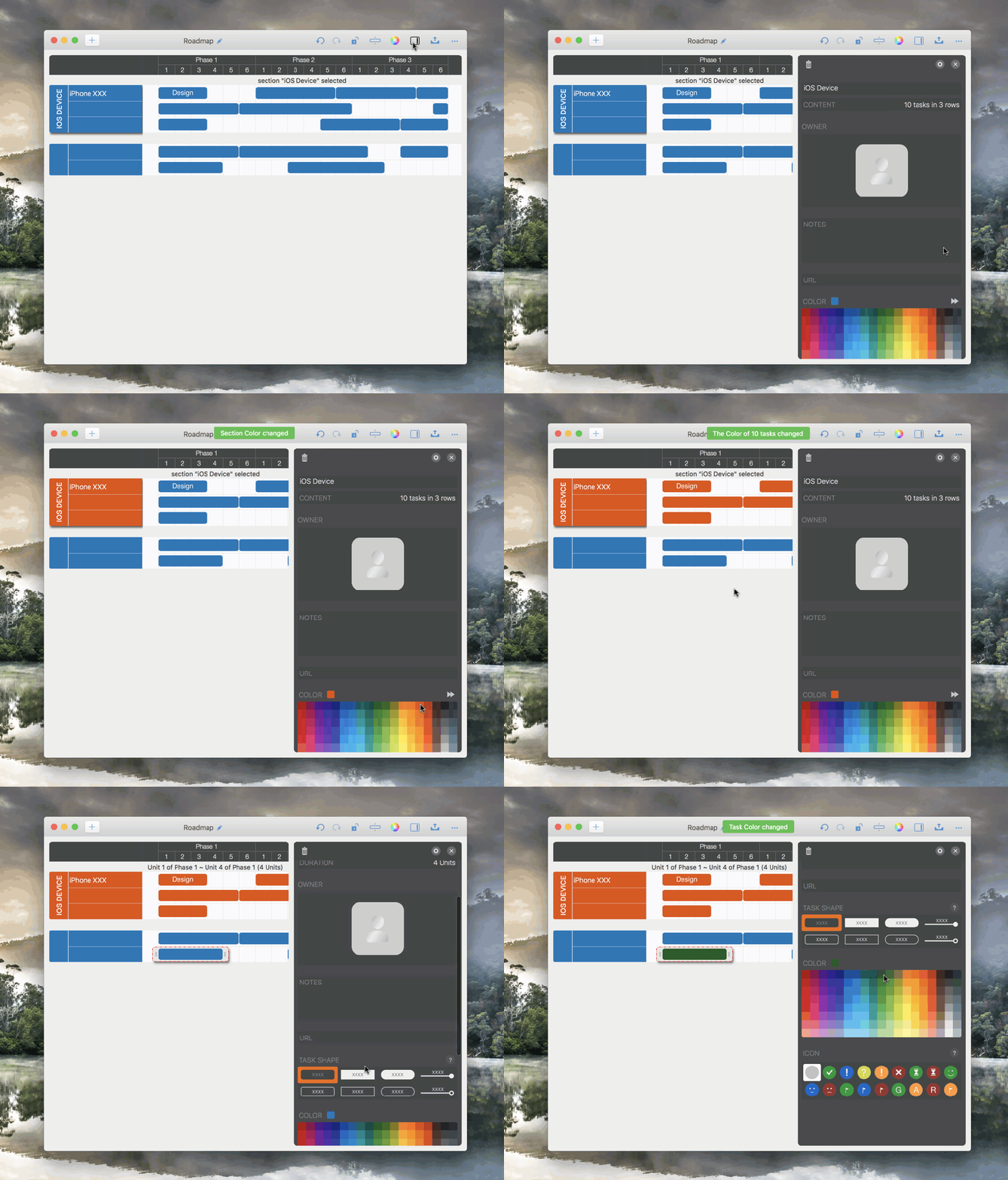
Maintain the properties on the updating panel
-
In addition to task fields with predefined purposes (such as title, notes, date, owner, and cost), there are extra fields without predefined meanings, including six single-line text fields, two multi-line text fields, and three URL fields.
-
Click the setting button at the top of updating panel to customize the visibility and title of the task fields.
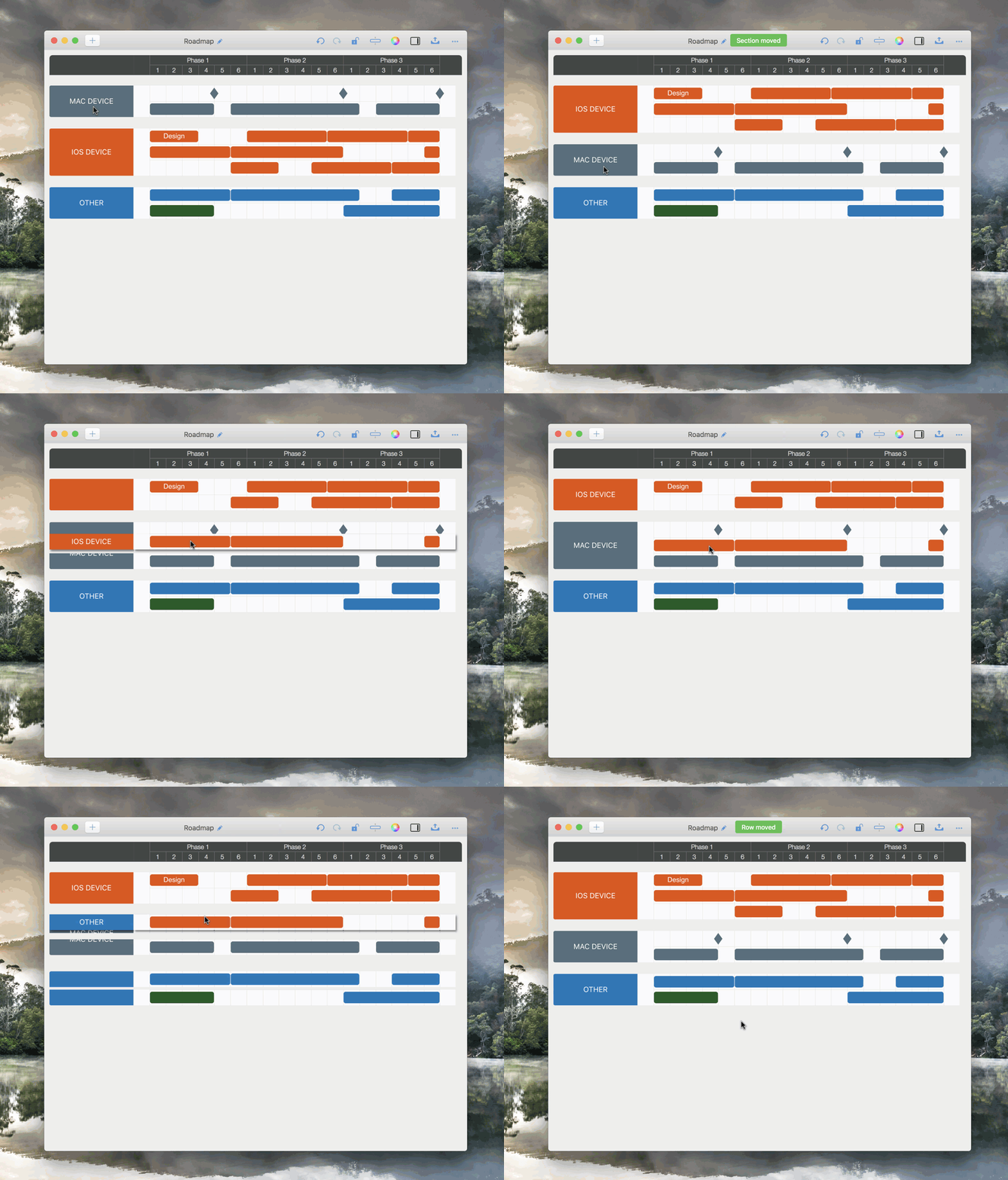
Move Section / Row by gestures.
⌘ + Mouse-Moving ("Command” key + "Mouse Moving”) to move selected Section/Row Up or Down.
Context Menus
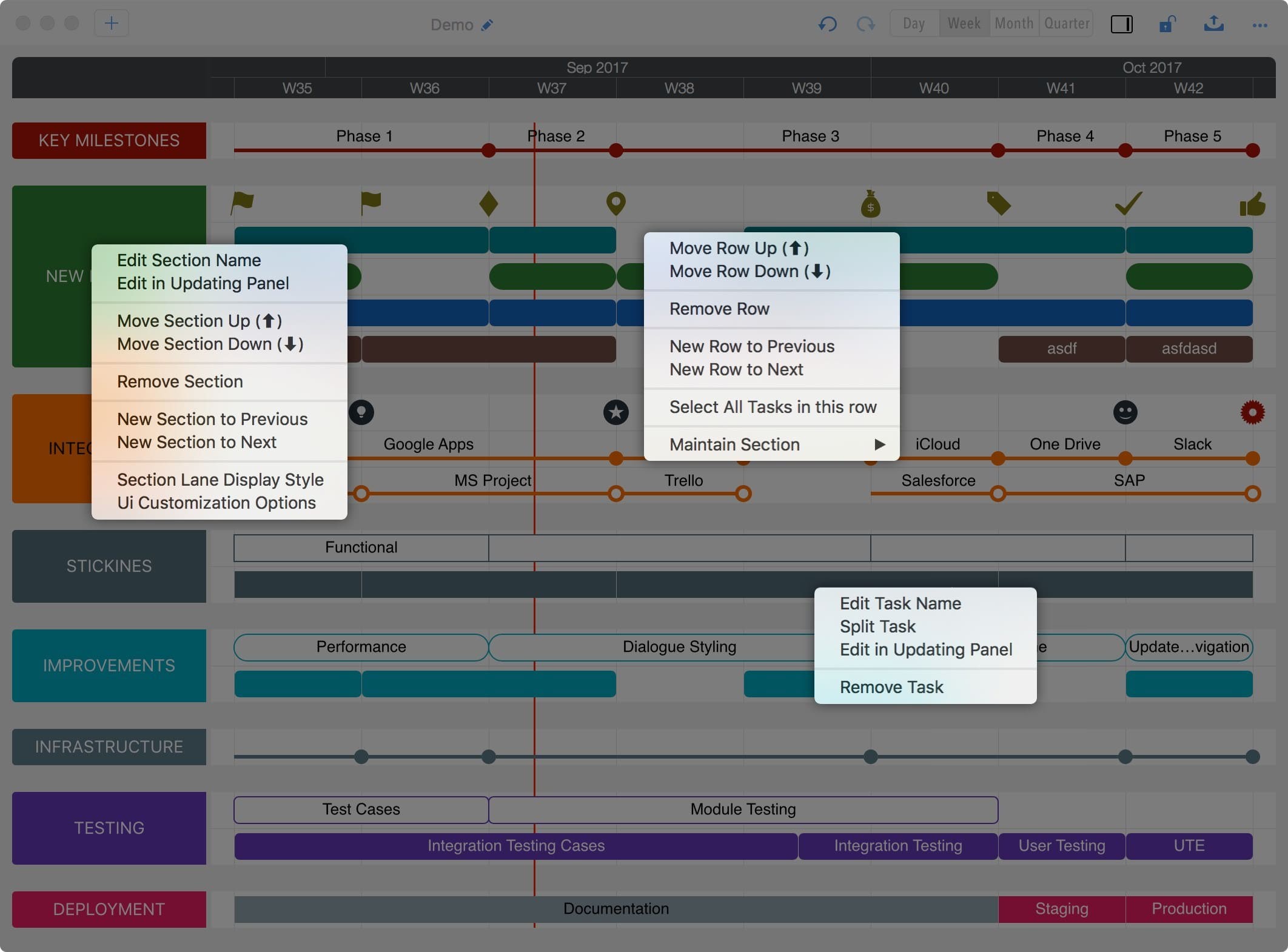
Right-click on a Section, a Row, and a Task to display the related context menu.
2026 © COPYRIGHT SWIFT APPS | All Rights Reserved