
Customize Roadmap
Customize Roadmap
Super flexible roadmap customization.
There is no single standard for a roadmap, but we still recognize one when we see it. While freehand drawing can represent anything, it is not practical for efficient editing or for keeping roadmap information as structured data that can integrate with other systems.
Roadmap provides powerful configuration options to customize document appearance and make the interface more business-friendly. Most options are document-specific, affect only the open document, and are stored inside that document. The same options apply when opening the document on other devices.
The options above are document-based and affect only the open roadmap document. They are stored in the roadmap file (.rdmap) and take effect the same way on other devices when you open that file.
Section Lane Display Style
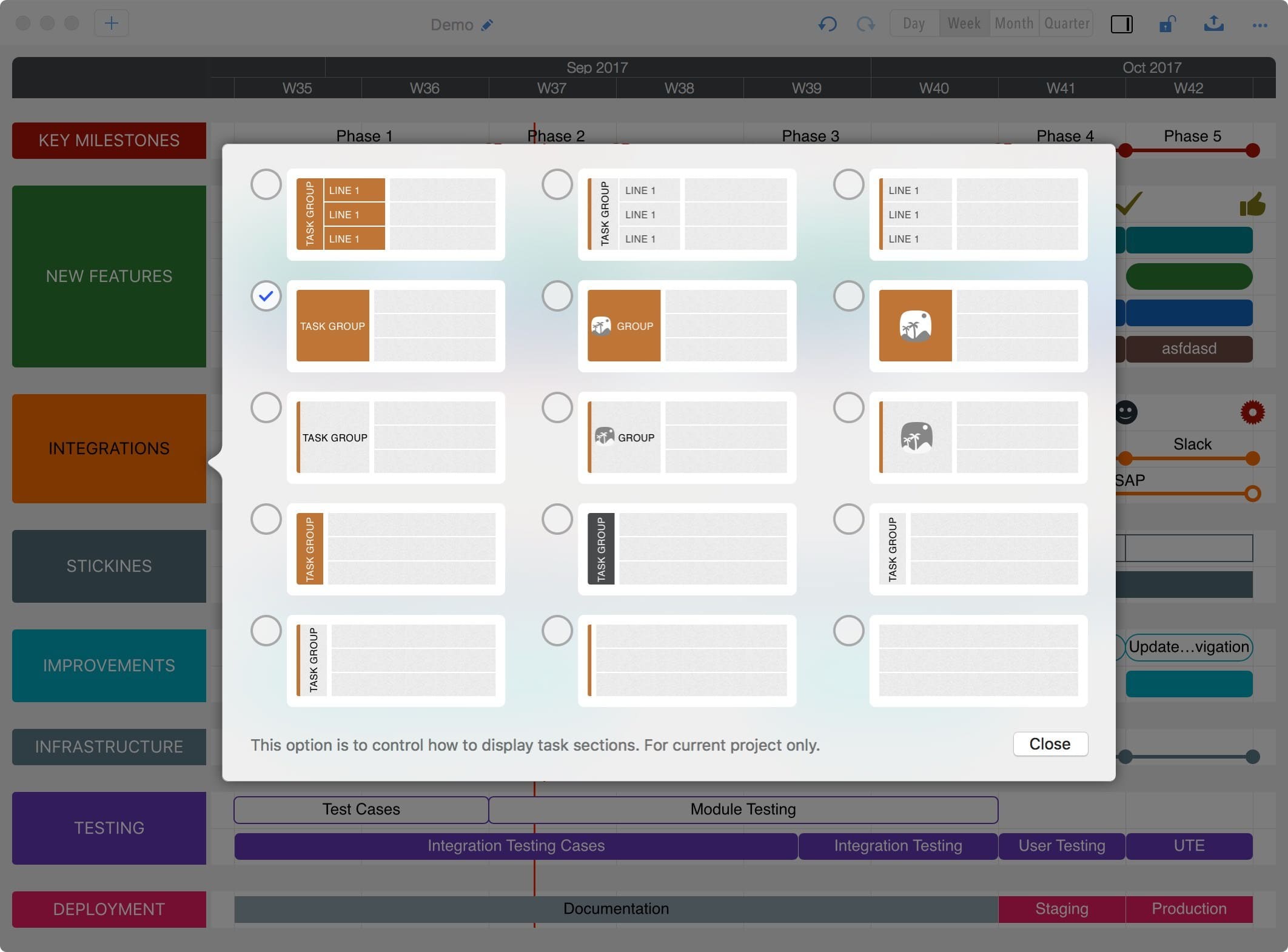
Alternatively, customize chart display from the app menu.
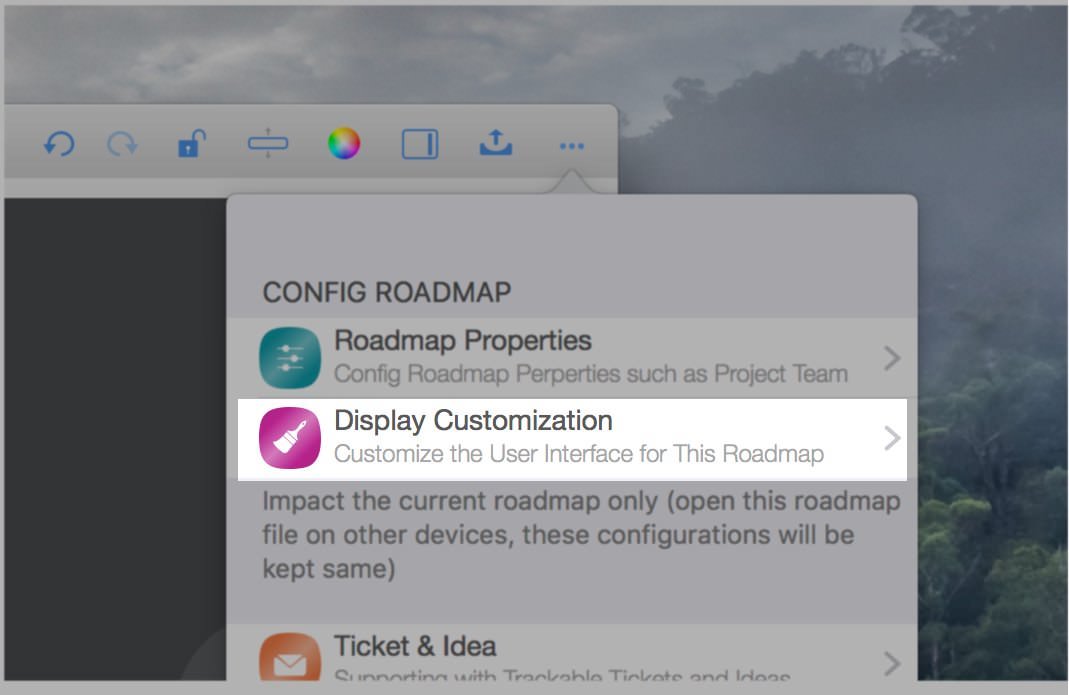
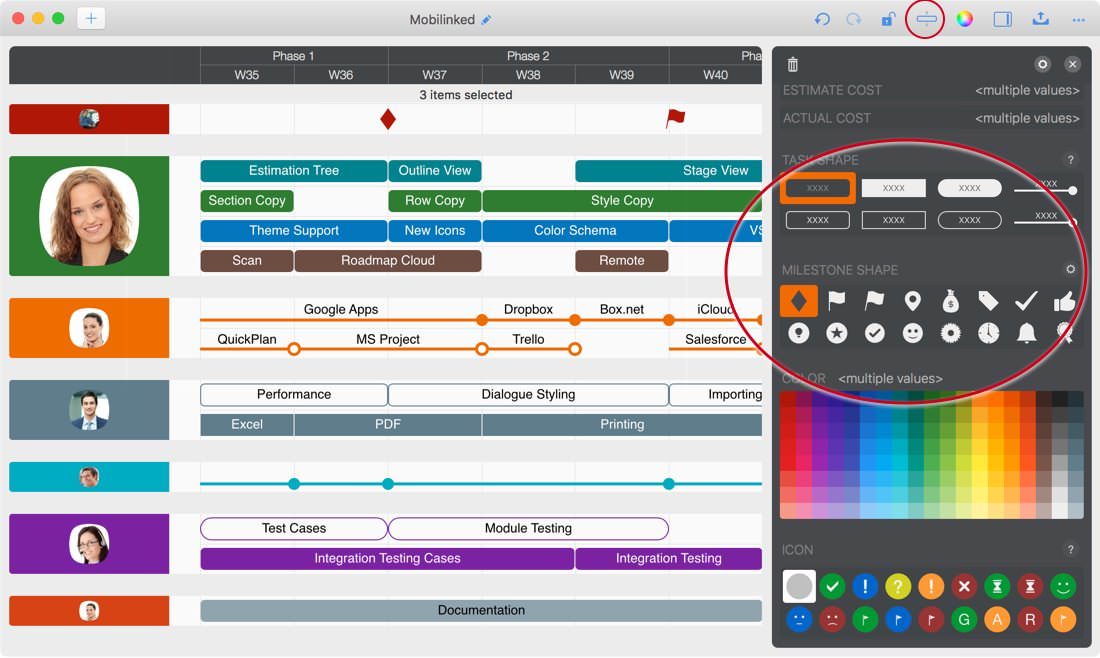
Task Shape and Content
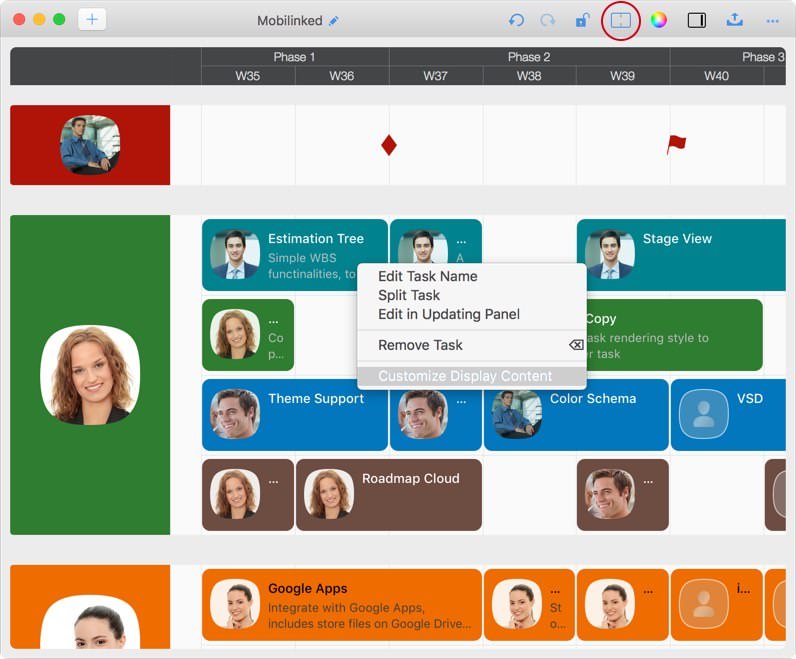
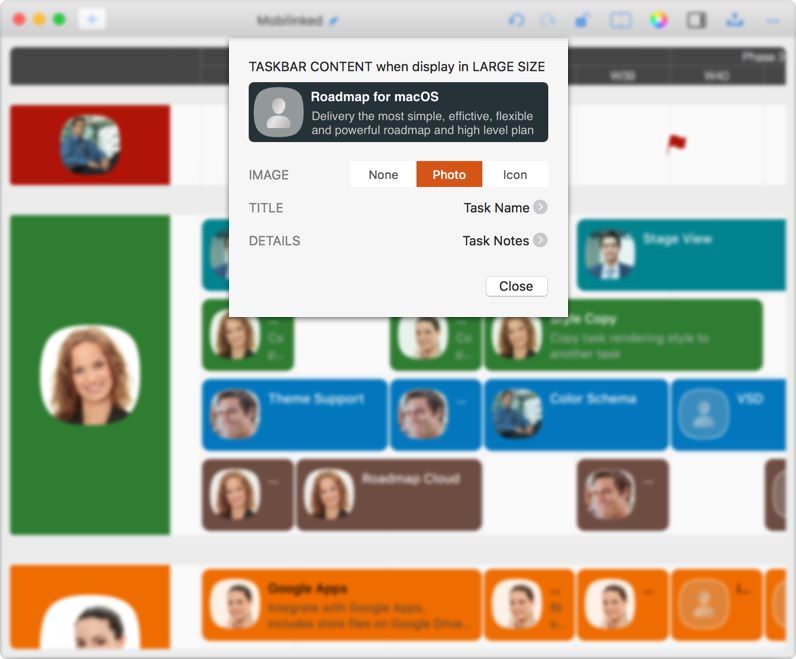
When taskbars are displayed in large size, you can customize the displayed content.
Right-click a task and choose the menu option to customize display content.
Milestone Icons Customization
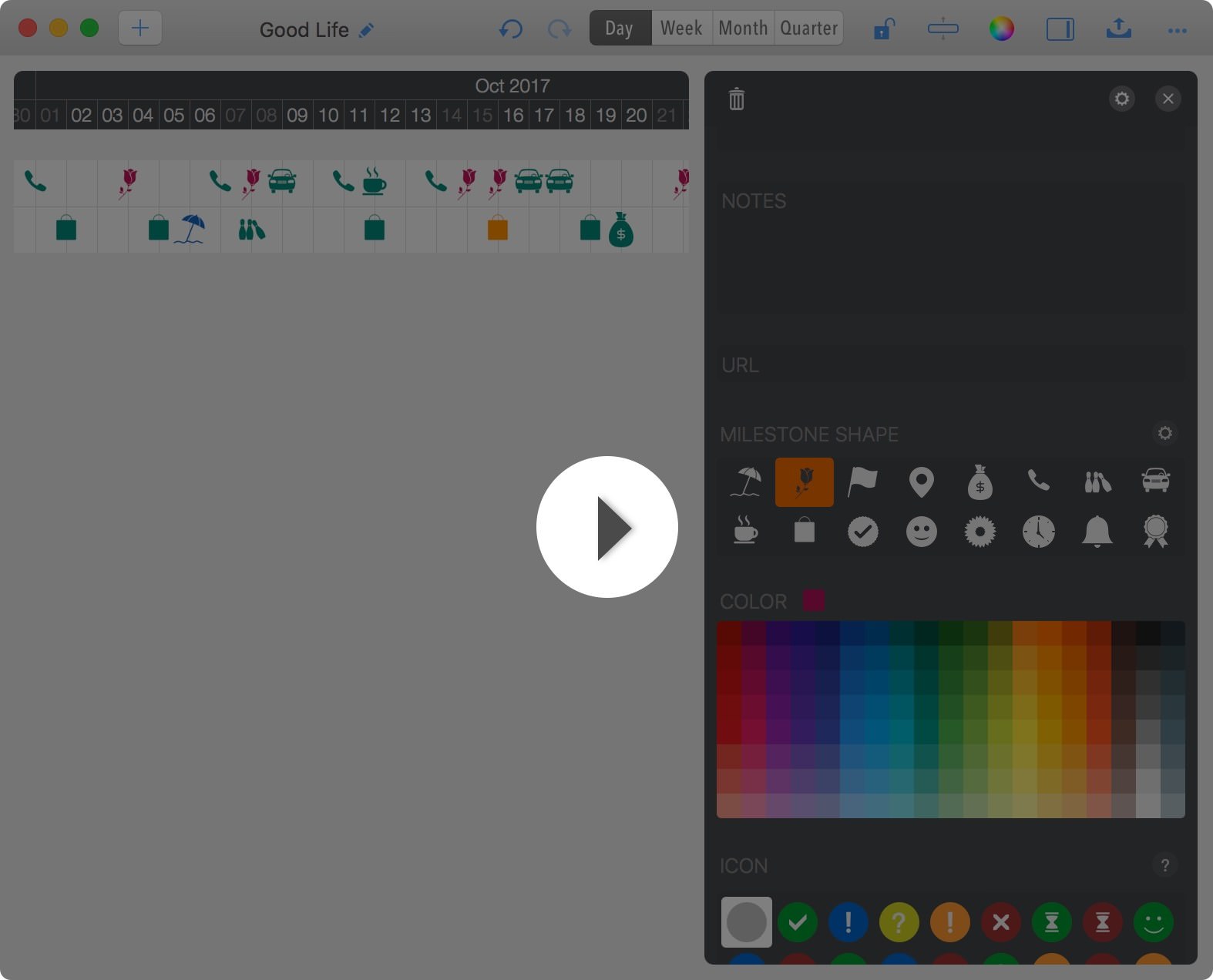
Roadmap for macOS provides 16 milestone shapes. If the built-in shapes do not meet your needs, you can easily customize them with PNG files.
The PNG file must include a transparent part. The Roadmap app replaces the non-transparent part with the color of the milestone and leaves the transparent part the same.
Click the image on the left to watch a video that demonstrates:
Additional Task Fields
In addition to task fields with predefined purposes (such as title, date, and cost), there are extra fields without predefined meanings. You decide how to use these additional fields.
By default, additional task fields are hidden. (The next section explains how to change task field visibility.)
"Roadmap for macOS" does not know how you use additional task fields. Because of that, the app cannot automatically infer how to convert them when exporting to other formats, or how to interpret them for direct actions. For example, you might use a single-line text field to store a related requirement file ID. Even if you expect that field to open the related requirement, the app cannot infer that behavior automatically.
Title & Visibility of Task Fields
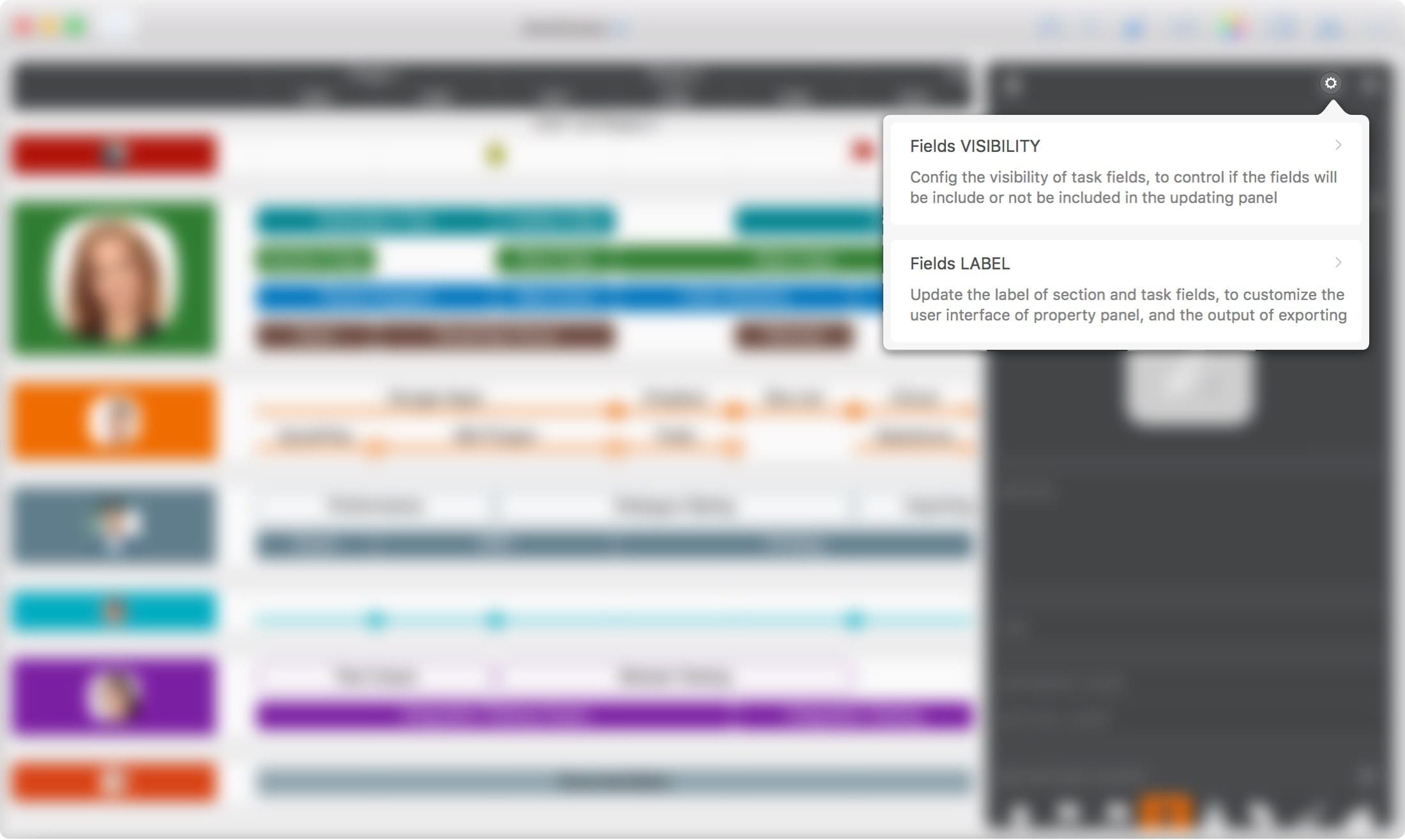
(Although the user interface is English-only, roadmap content can be in any language. By customizing task field titles in your local language, exported output can also be fully localized.)