
The Timeline is Customizable
- Manually update the timeline by adding, removing, and editing cells.
- Initialize the timeline with predefined templates.
- Update titles in bulk using text formulas.
Manually Updating Timeline
Manually maintain timeline sections and cells, and update cell titles.
Initialize Timeline via Templates
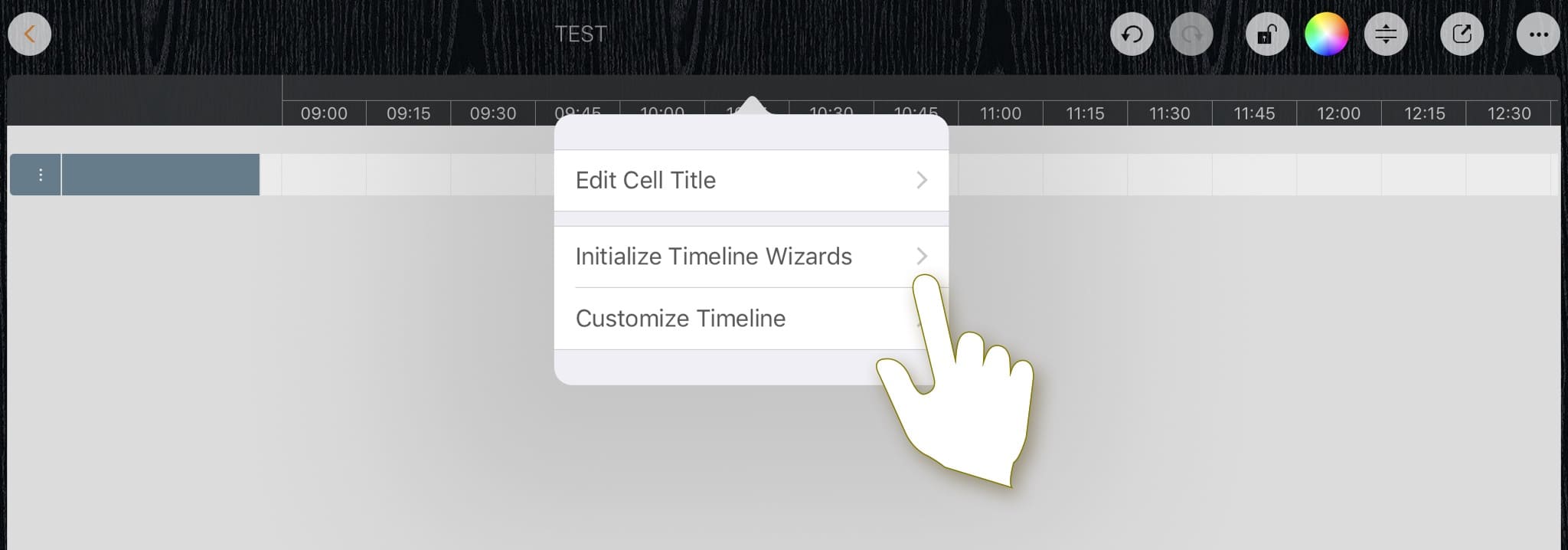
Tap the timeline to open the context menu, then choose to initialize the timeline with wizards (wizards are available only when there are no tasks in the roadmap).

Batch Update Titles using Formula
You can initialize the timeline with a text formula to efficiently customize the number of cells and their titles.
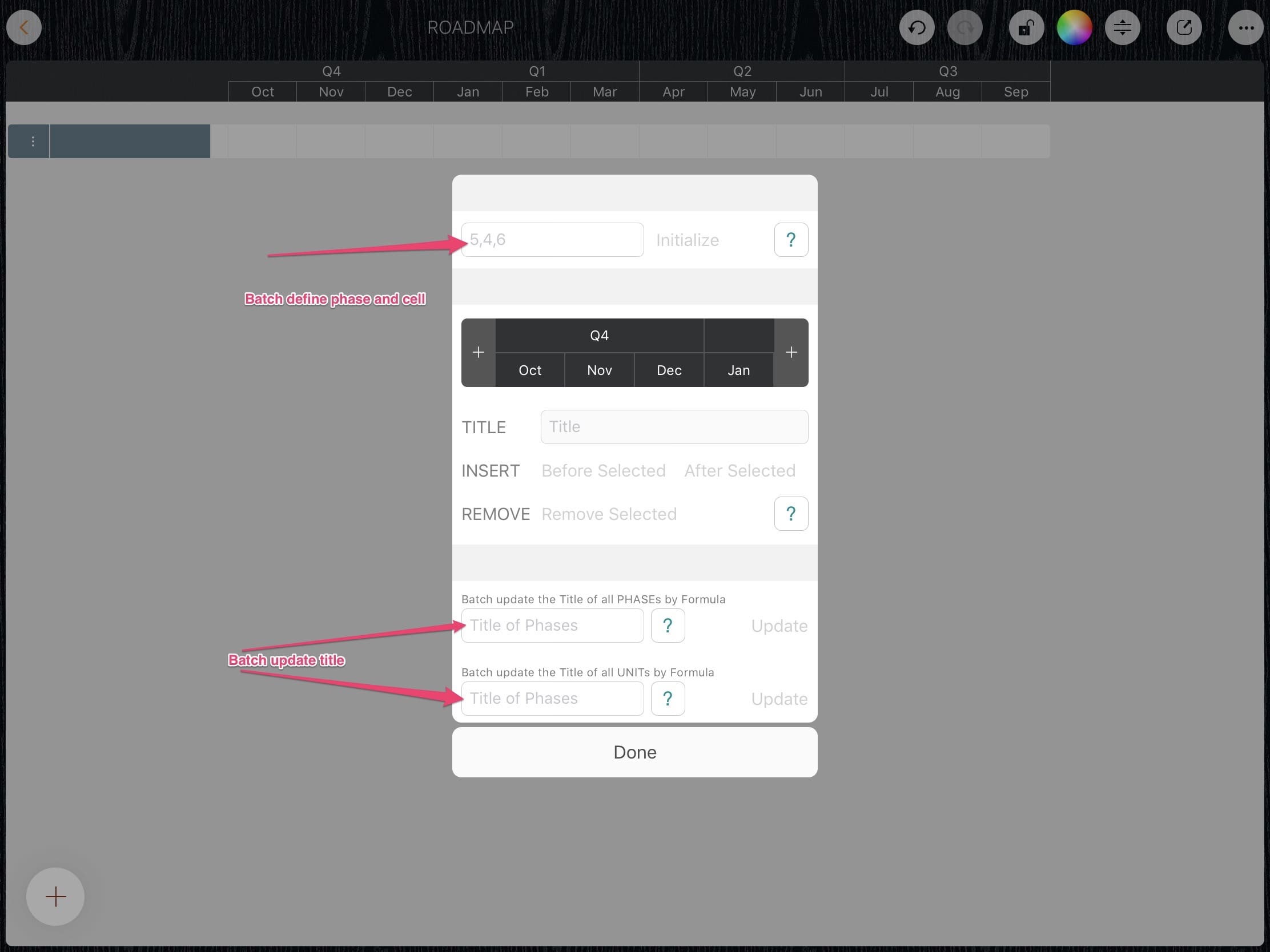
Following are some examples.
1. Three phases, the cells in each phase are different

Create a timeline with 3 phases: the first includes 5 weeks, the second includes 6 weeks, and the last includes 3 weeks.
-
“5, 6, 3” – Create a timeline with 3 phases.

-
“W{i}” – Update the titles of all cells.

2. Four sprints and 10 days in each sprint.

We are creating a timeline with 4 sprints and 10 days in each sprint.
-
“10,10,10,10” – Create timeline with 4 phases and 10 cells in each phase.

-
“Sprint {p}” – Update the title of all the phases.

-
“#{i}” – Update the title of all the cells.

3. (advanced example) A seminar with 3 days, working time from 8:00 to 15:00.

-
“8,8,8" – Create timeline with 3 phases and 8 cells in each phase

-
“Day {S p}” – Update the title of all the phases.

-
“{00 p + 7}:{00 i * 15 - 15}” – Update the title of all the cells.

4. (advanced example) A six-hour meeting starting at 8:00, 15 minutes per cell.

-
“4,4,4,4,4,4” – Create a timeline with 6 phases and 4 cells in each phase.

-
“Hour {p + 7}” – Update the title of all the phases.

-
“{00 p + 7}:{00 i * 15 - 15}” – Update the title of all the cells.

Documents Maintenance
Document Properties
Timeline
- Timeline Customization
Section, Row, and Task Maintenance
Gestures & Keyboard Shortcuts
Customizations
Synchronization
Sharing & Import
Integrations
Others