
Drawing Mode
In Drawing Mode, intuitive gestures let you efficiently create, remove, split tasks, and combine tasks.
- Pan right to create a task, and pan down to create a milestone. Also, if your finger is outside an existing section, a new section or row may be created up to your finger position (based on the distance from the section above).
- Swipe Left-Down from a task to remove it.
- Tap to Split Task or Combine nearby Tasks.
Drawing Mode provides only the operations above. For other operations, switch back to Standard Mode.
Switch between Drawing Mode and Standard Mode
Because of display size differences, entering Drawing Mode is different on iPad and iPhone.
-
On the iPad
-
When operating using FINGERs:
Drawing Mode: Keep one finger touching the "+" button.
Standard Mode: Release your finger from the "+" button to return to standard mode.

-
When using Apple Pencil, the roadmap view enters drawing mode automatically; you do not need to keep one finger pressed on the "+" button.
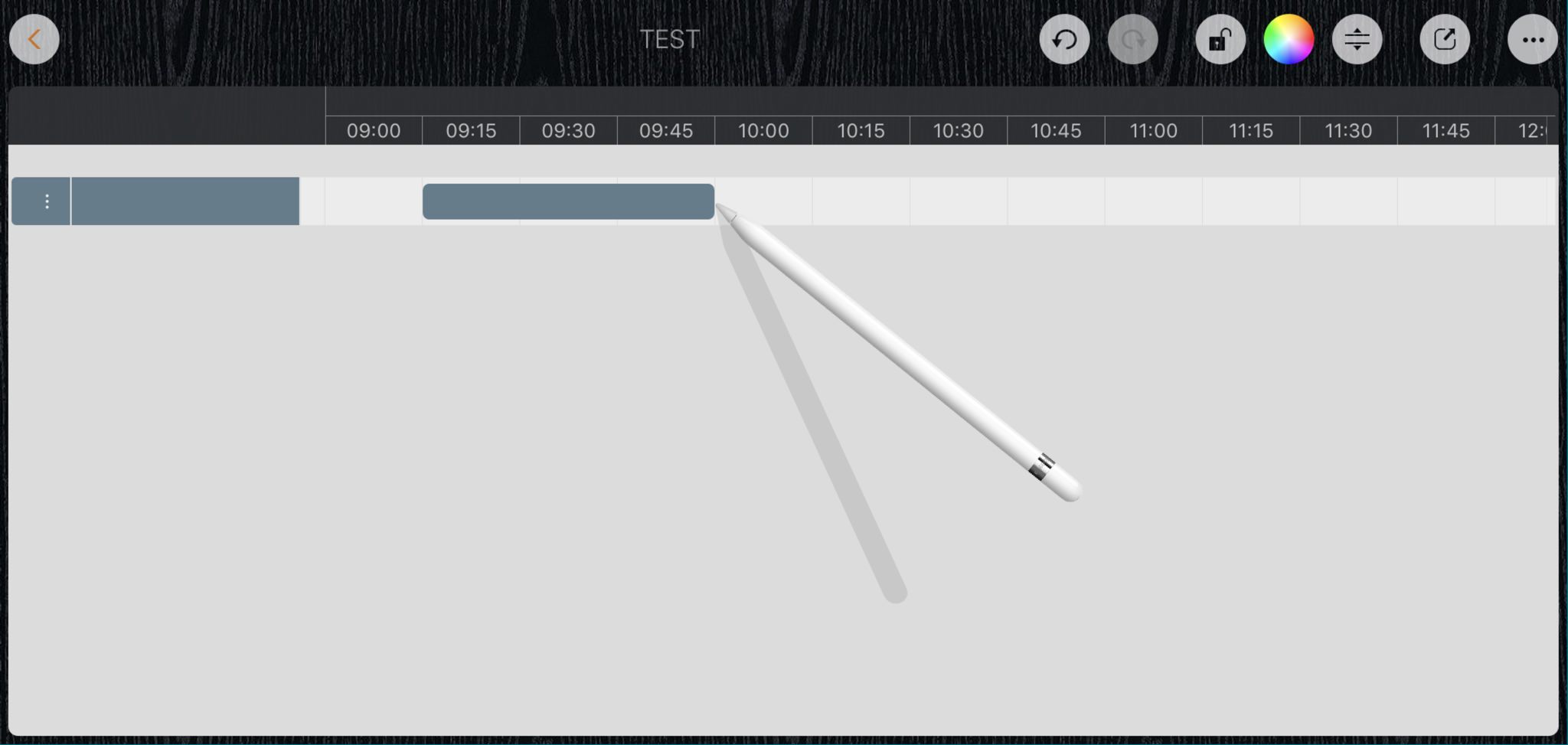
-
When operating using FINGERs:
-
On iPhone, tap the "+" button to switch between standard mode and drawing mode (tap once to enter drawing mode, tap again to return to standard mode).

Documents Maintenance
Document Properties
Timeline
Section, Row, and Task Maintenance
- Section, Row, and Task
- Task Fields
- Drawing Mode - Create, Remove, Split task and Combine tasks
- Task Maintenance
- Section and Row Maintenance
Gestures & Keyboard Shortcuts
Customizations
Synchronization
Sharing & Import
Integrations
Others