

Select a Task
- Tap a not selected task to select it.
- ←,→,↓,↑ (Arrow Key) to switch task selection
Task Context Menu
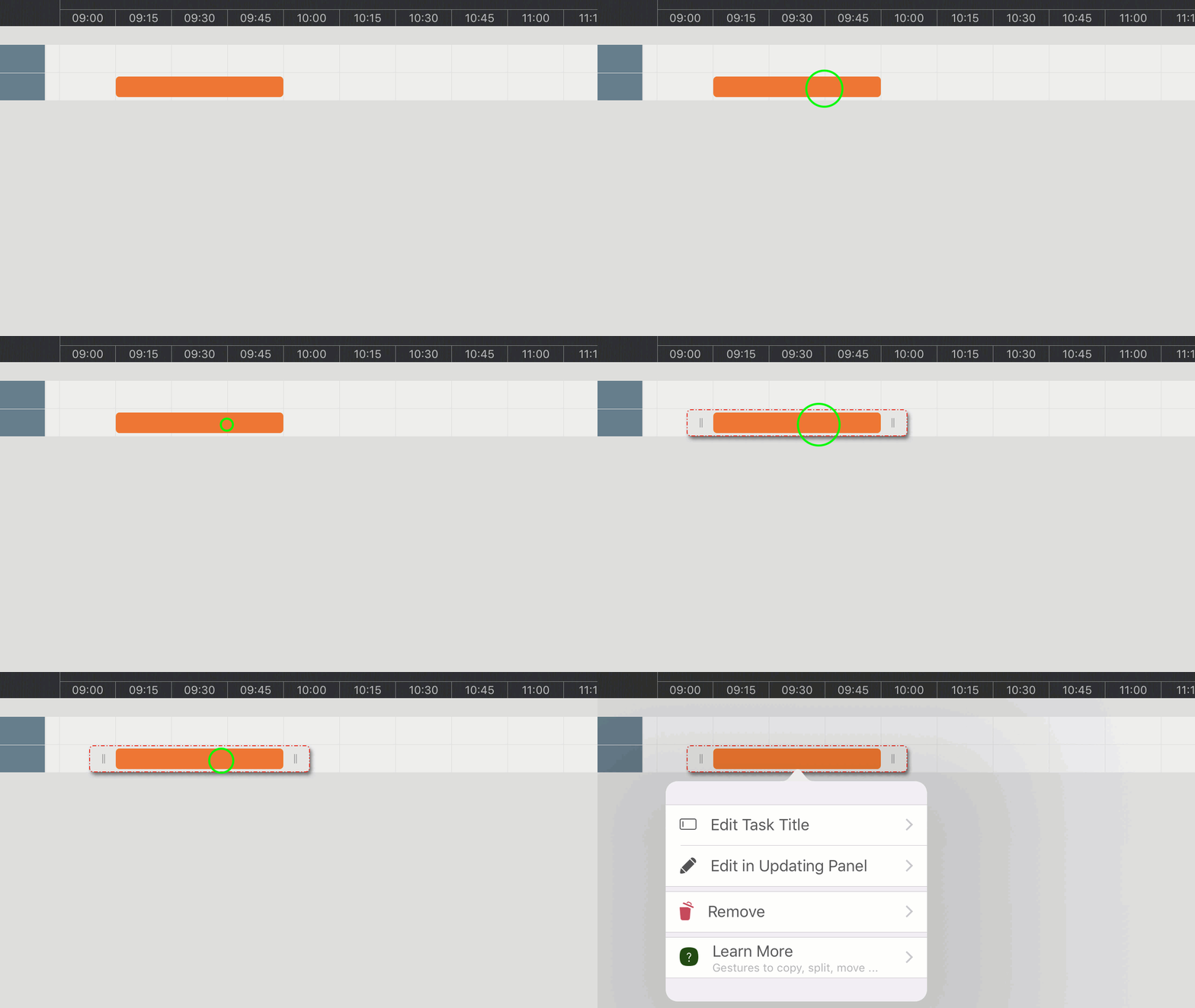
Tap a selected task again to open the task-related context menu.
Move Task
-
Gesture: Move a selected task directly to a new position.

-
Keyboard Shortcut: ⇧ ←,→,↓,↑ (Shift + Arrow Key).

Change Task Duration
-
Gesture:

-
Keyboard Shortcut:
⇧ + ("Shift" + "+") - Increase task duration by one cell, if possible.
⇧ - ("Shift" + "-") - Decrease task duration by one cell, if possible.
Copy Task
- Tap a selected task and hold until the green "+" button appears at the top-left corner of the taskbar.
- Then move to another position to copy.
Depending on the copy destination, a new section or row may be created.

Update Task Properties
-
Tap the edit button (visible when a task is selected) in the bottom-right corner to open the updating panel, where you can edit task properties.
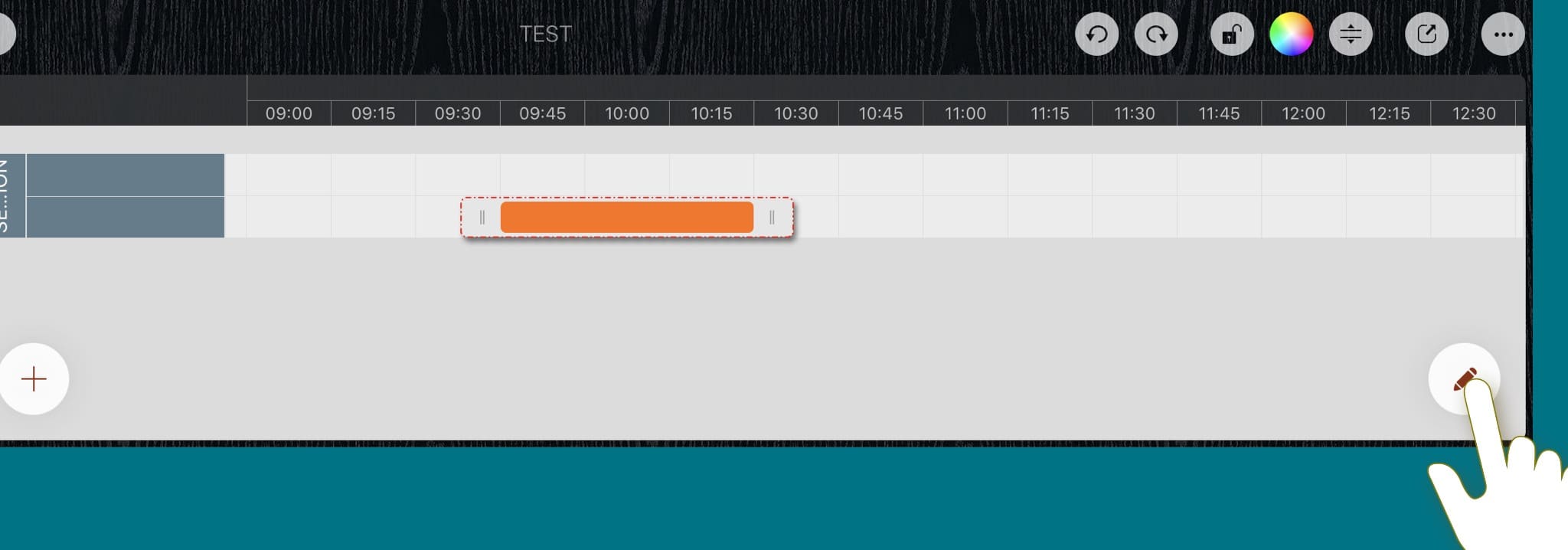
- Alternatively, double-tap a task to display the updating panel.
-
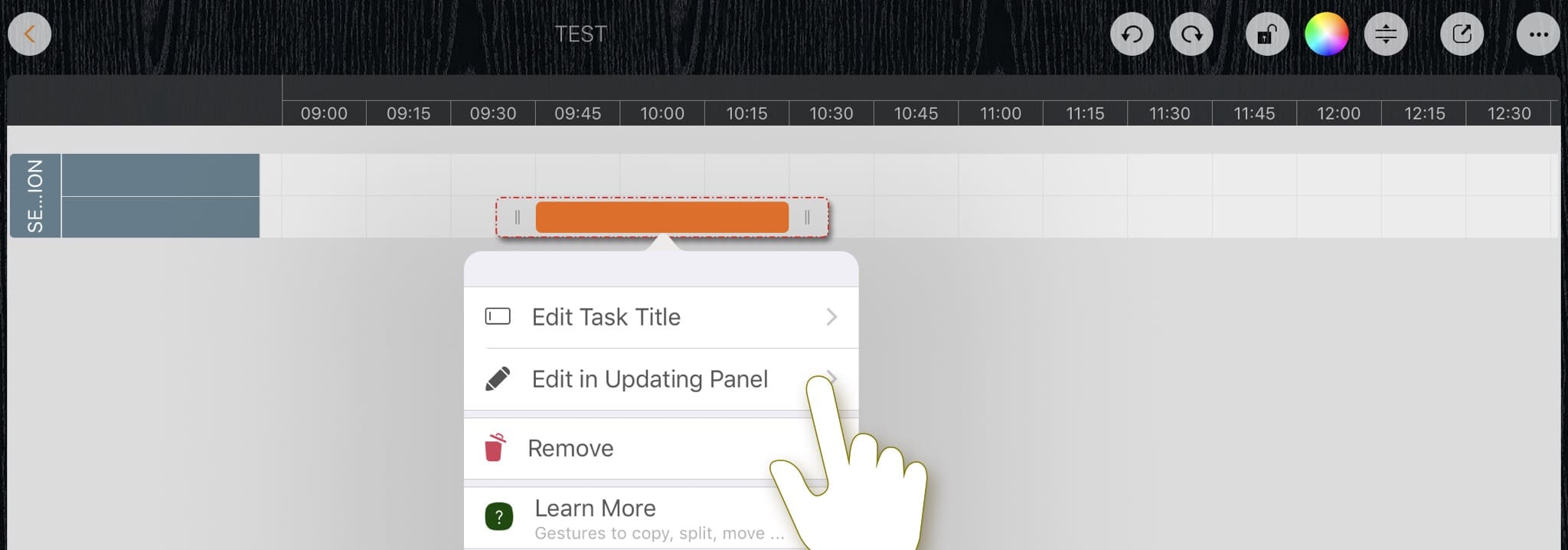
Alternatively, open the updating panel from the context menu (tap the selected task again to open the context menu).
Directly Edit Task Title
- If a task is selected, press "Return" to edit the task title directly.
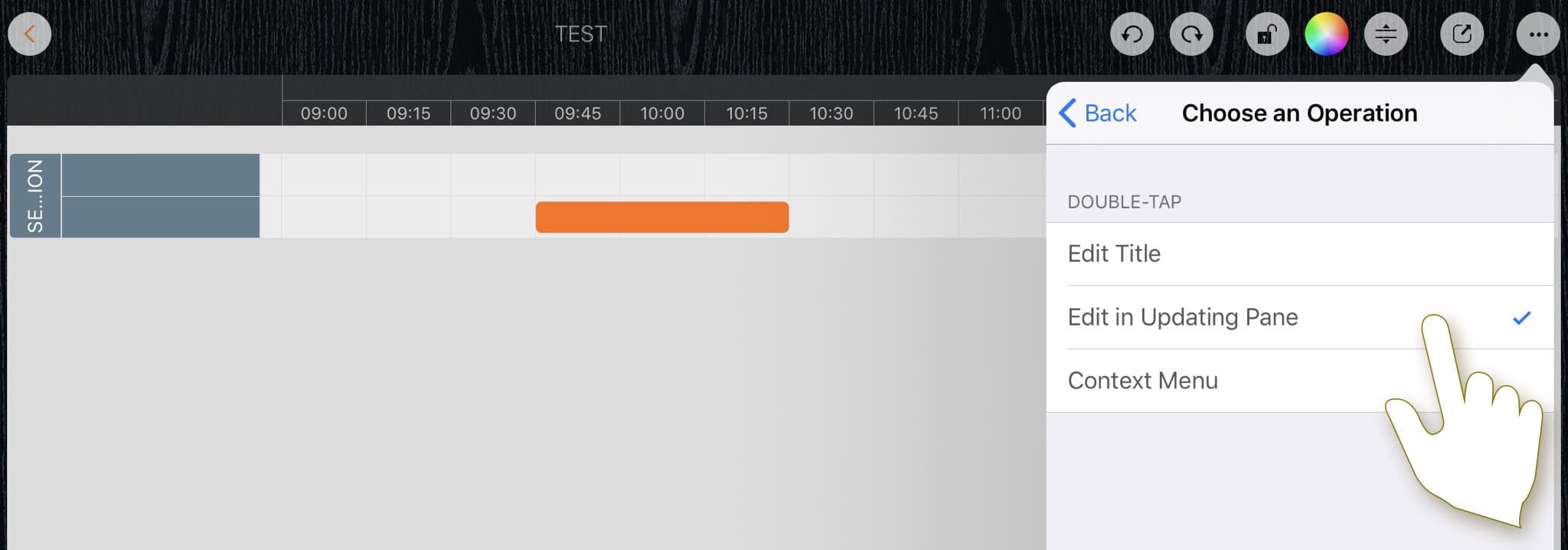
- Alternatively, double-tap a task to edit the title directly if double-tap is configured for title editing (see the next section on double-tap customization).
- Alternatively, use the "Edit Task Title" option in the context menu.
Remove Task
- If a task is selected, "Delete" key to remove the task directly,
- Alternatively, via the "Remove" button in the context menu,
- Alternatively, in drawing mode, swipe left-down from a task to remove it.
Split Task and Combine Tasks
In drawing mode, tap on a task to split it if possible, and tap between two tasks to combine them if possible.
Customization Option
There is an option to customize the operations for double-tap gesture
Documents Maintenance
Document Properties
Timeline
Section, Row, and Task Maintenance
Gestures & Keyboard Shortcuts
Customizations
Synchronization
Sharing & Import
Integrations
Others