
Accessing iCloud Drive on iOS devices
If iCloud Drive is enabled for Roadmap, you can load the "iCloud Drive" document group from the Home View.
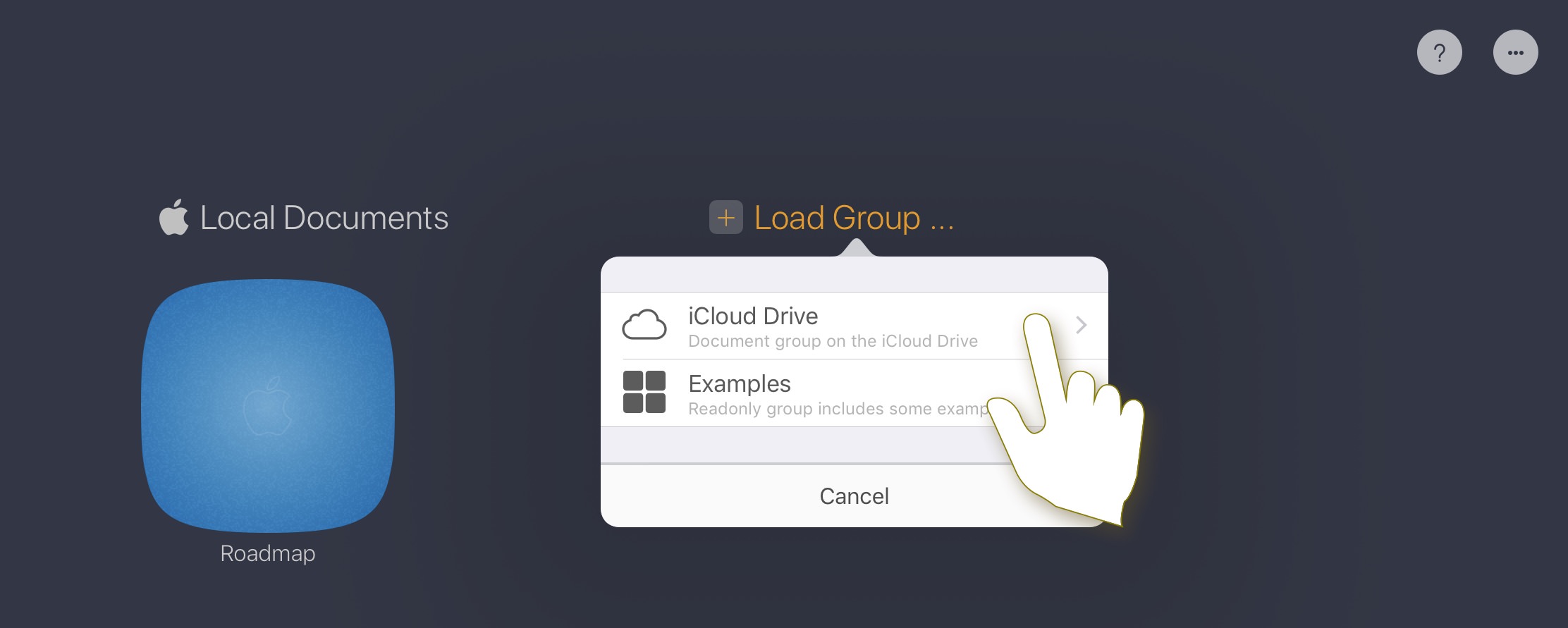
All documents in the iCloud Drive group are stored in your iCloud Drive, and document changes are automatically synced to your other devices through iCloud, managed by iOS and macOS.

Tap to learn more about document group management, including how to copy documents between the local document group and the iCloud Drive document group.
For important roadmap documents, our recommendation is to manually copy them to the local document group as a backup. Because iCloud Drive sync is automatic (managed by iOS and macOS, not directly by the app), unintended updates on another device can sync before you notice. A local backup helps if all versions in iCloud Drive are incorrect.
Accessing iCloud Drive on Mac
After you install “Roadmap for macOS” from the Mac App Store, macOS creates an iCloud Drive folder for Roadmap documents. Files in that folder are automatically synced to all devices using the same iCloud account (Apple ID), managed by iOS and macOS.
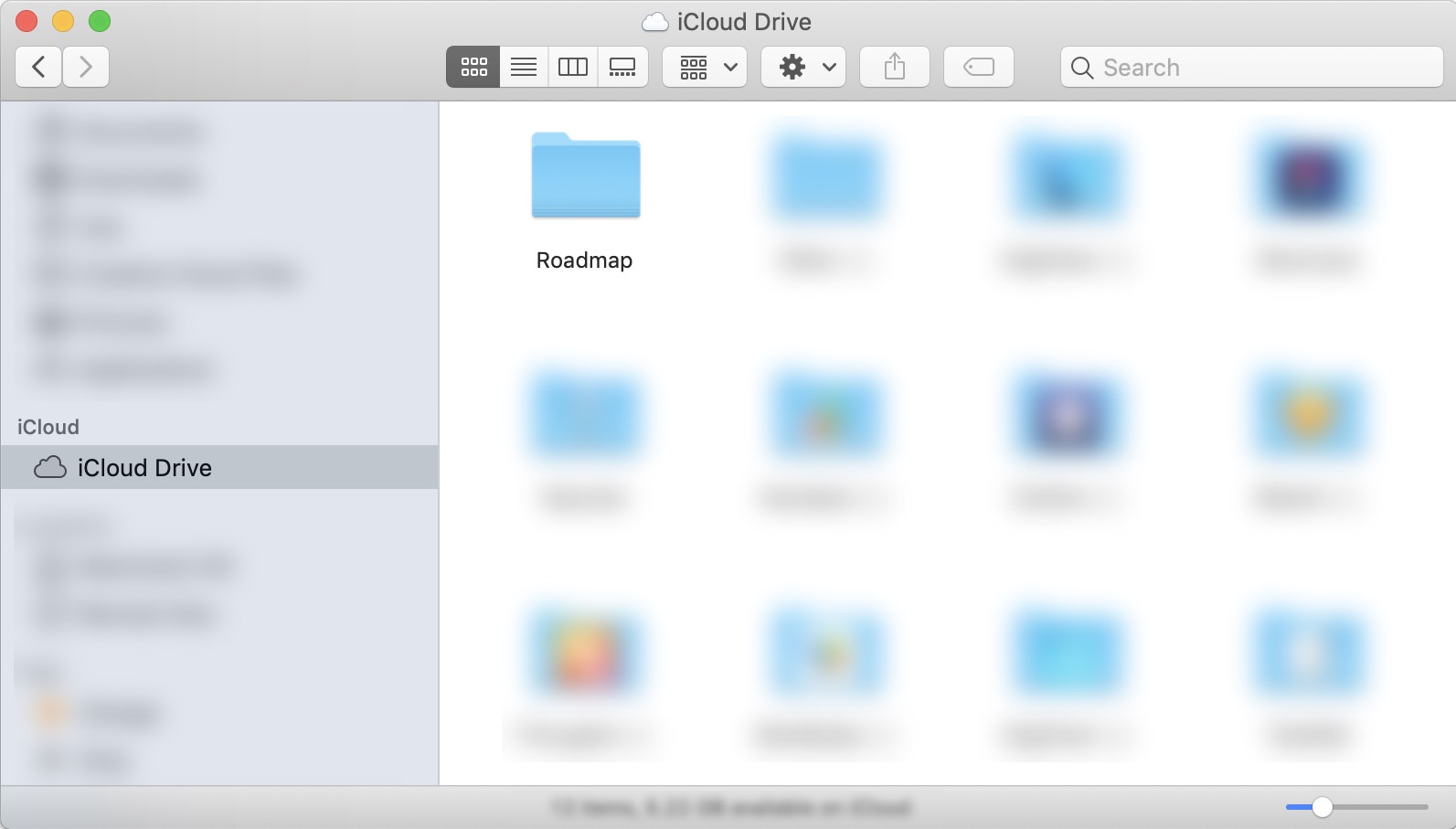
Roadmap supports direct access to .rdmap files in the Roadmap iCloud Drive folder, and updated files are automatically synced to other devices.
Our recommended practice is to use a working folder as a bridge to the iCloud Drive folder. Before copying changed files from the working folder back to iCloud Drive, you can review them. This helps prevent large mistakes from being synced to other devices before you notice.
- Copy the roadmap file from the Roadmap iCloud Drive directory to another directory before editing. For example, create a directory named “working space” outside iCloud Drive and copy the project file there. (Check the file's modified date to make sure sync is complete if another device has changed it.)
- Open the copied roadmap file in the “working space” directory.
- After saving and reviewing, replace the project file in the Roadmap iCloud Drive directory with the updated file from the “working space” directory.
Troubleshooting
File transfer across devices through iCloud Drive is coordinated by iOS and macOS (not by the app), which control when and how roadmap files are transferred between devices. Most of the time, iCloud Drive works well and sync is fast. However, if changes are not syncing as expected:
- Make sure the same iCloud account is used on all devices, and that iCloud Drive is enabled in iOS settings.
-
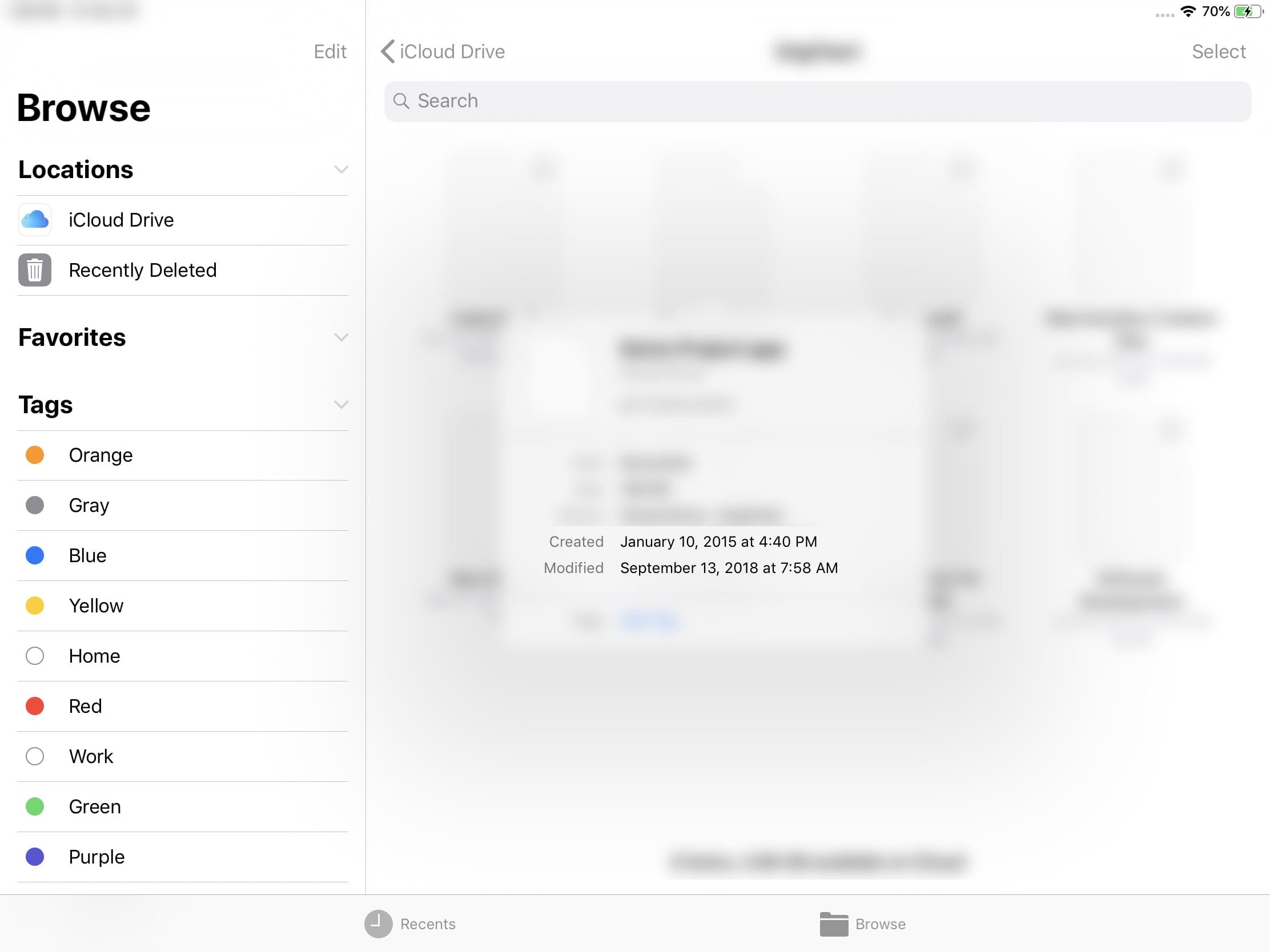
To confirm roadmap file synchronization is complete, check the files in the Apple "Files" app on iOS.
Documents Maintenance
Document Properties
Timeline
Section, Row, and Task Maintenance
Gestures & Keyboard Shortcuts
Customizations
Synchronization
- Sync via iCloud Drive
Sharing & Import
Integrations
Others