Section, Row, and Task
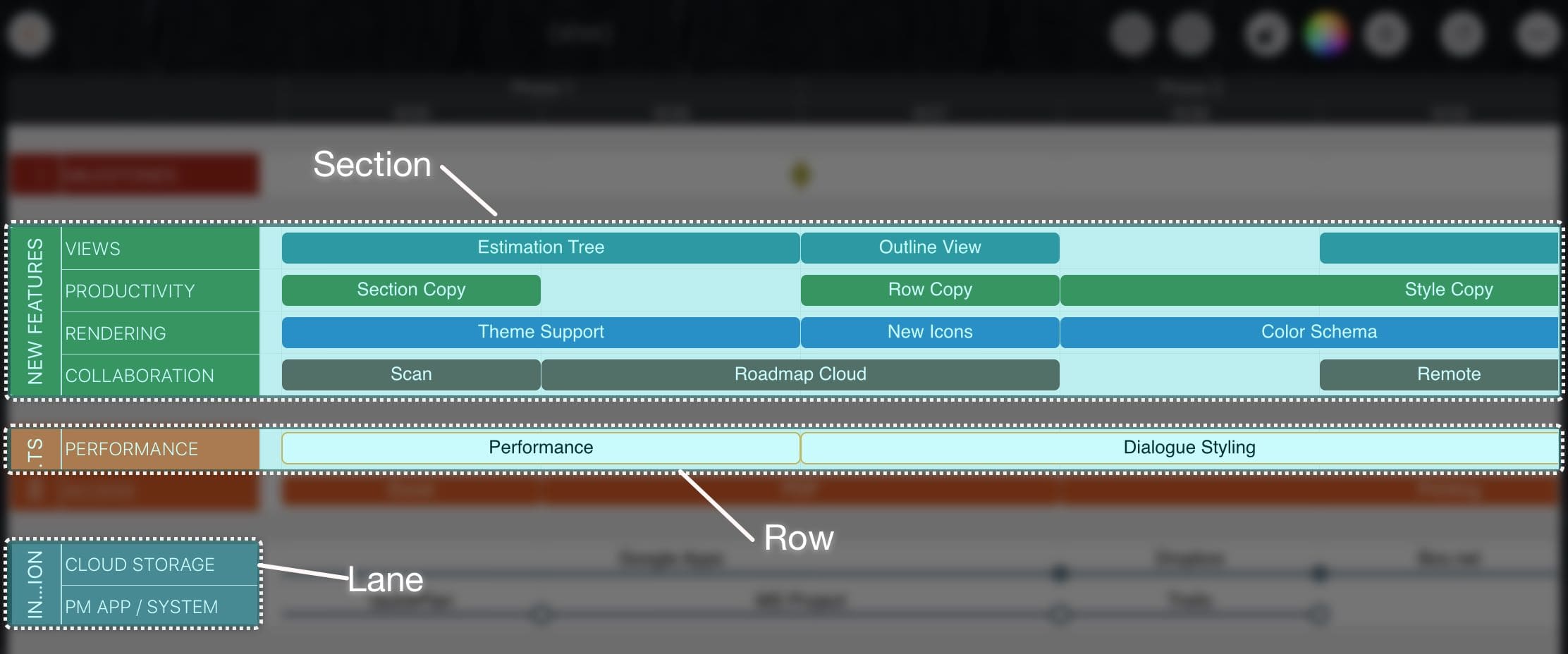
The Roadmap app organizes tasks into sections and rows.
-
A task cannot overlap another task. Therefore, Roadmap is typically used for product roadmaps and high-level project plans. If you need detailed project scheduling, please check out QuickPlan.
-
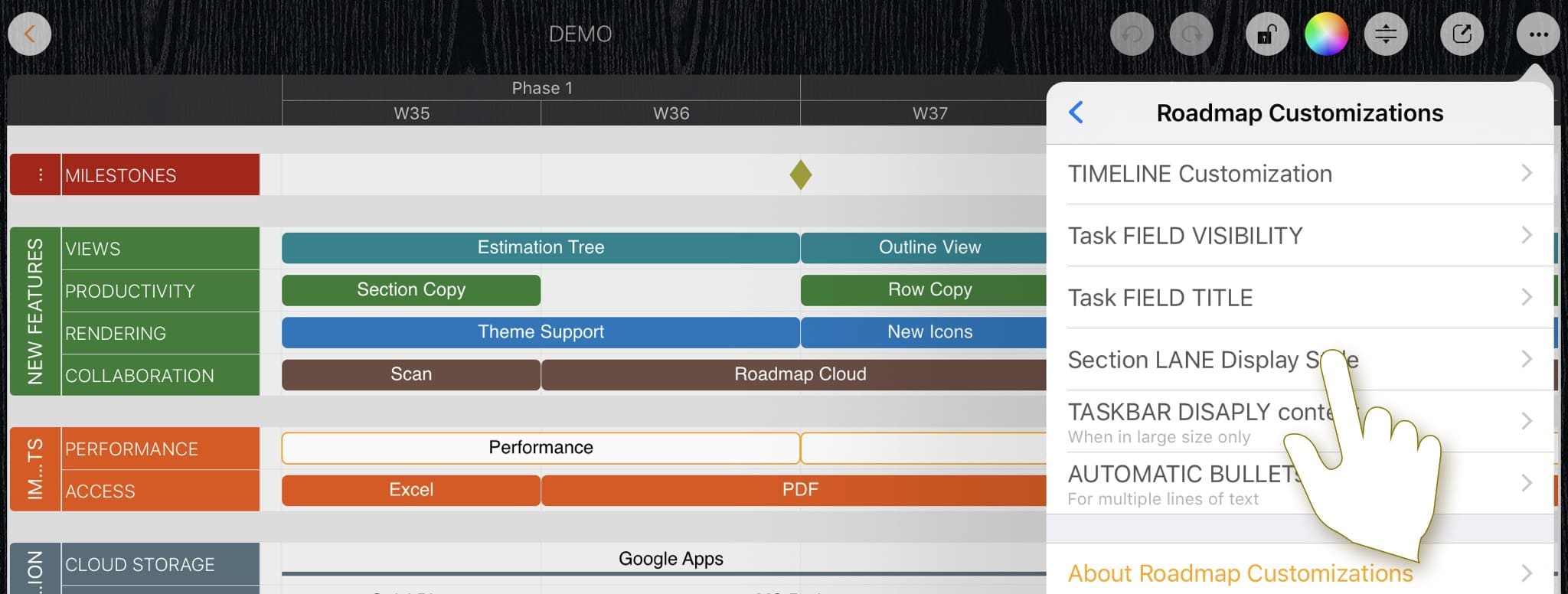
The display style of the section lane is customizable.
-
The app provides gestures for maintaining sections and rows.
Drawing Mode
In Drawing Mode, intuitive gestures make it very efficient to create, remove, split tasks, and combine tasks.
-
Swipe right to create a new task; swipe down to create a new milestone. Even more efficient: When you create a new task or milestone, if your finger is not on an existing section, a new section or row is created up to the distance of the section above it from your finger's position to contain the tasks.
-
Swipe left and down quickly from a task to remove the task.
-
Tap a task to split it, tap between two tasks to combine them into one.
Drawing mode provides only the operations above. If you need other operations, please return to standard mode.
The drawing mode on iPhone is a little different. Please take a look at the details.
Task Selecting and Context Menu
Select a Task
-
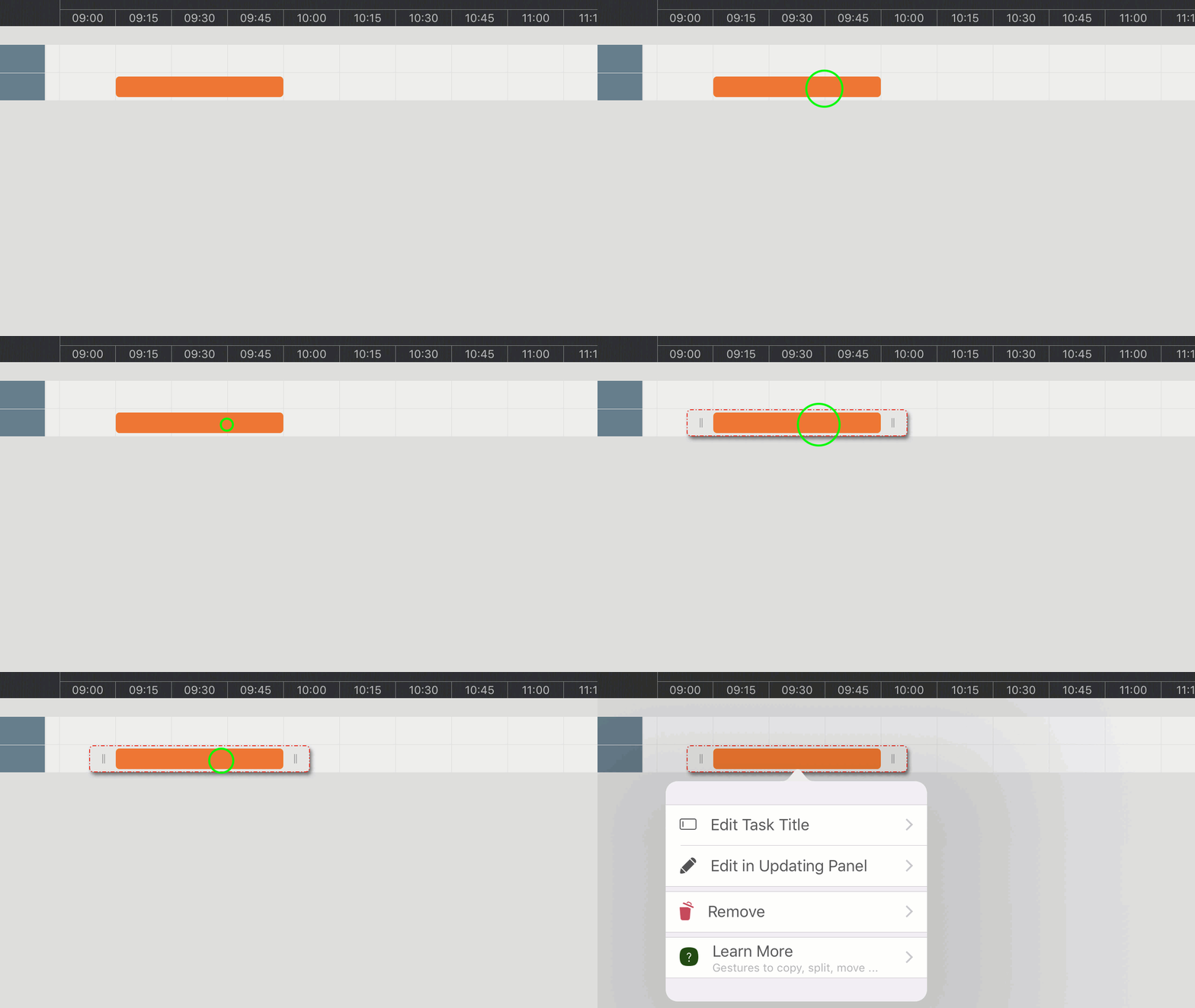
Tap a not-selected task to select it.
-
←,→,↓,↑ (Arrow Key) to switch task selection
Task Context Menu
Tap a selected task again to open the task-related context menu.
Move Task
-
Gesture: Move a selected task directly to a new position

-
Keyboard Shortcut: ⇧ ←,→,↓,↑ (Shift + Arrow Key)

Change Task Duration
-
Gesture:

-
Keyboard Shortcut:
⇧ + ("Shift" + "+") - Increase task duration by one cell, if possible.
⇧ - ("Shift" + "-") - Decrease task duration by one cell, if possible.
Copy Task
-
Tap and hold on a selected task until the green "+" button appears in the upper left corner of the tapped task.
-
Then move to another position to copy.
A new section or row will be created up to the target position of the copied task.

Update Task Properties
-
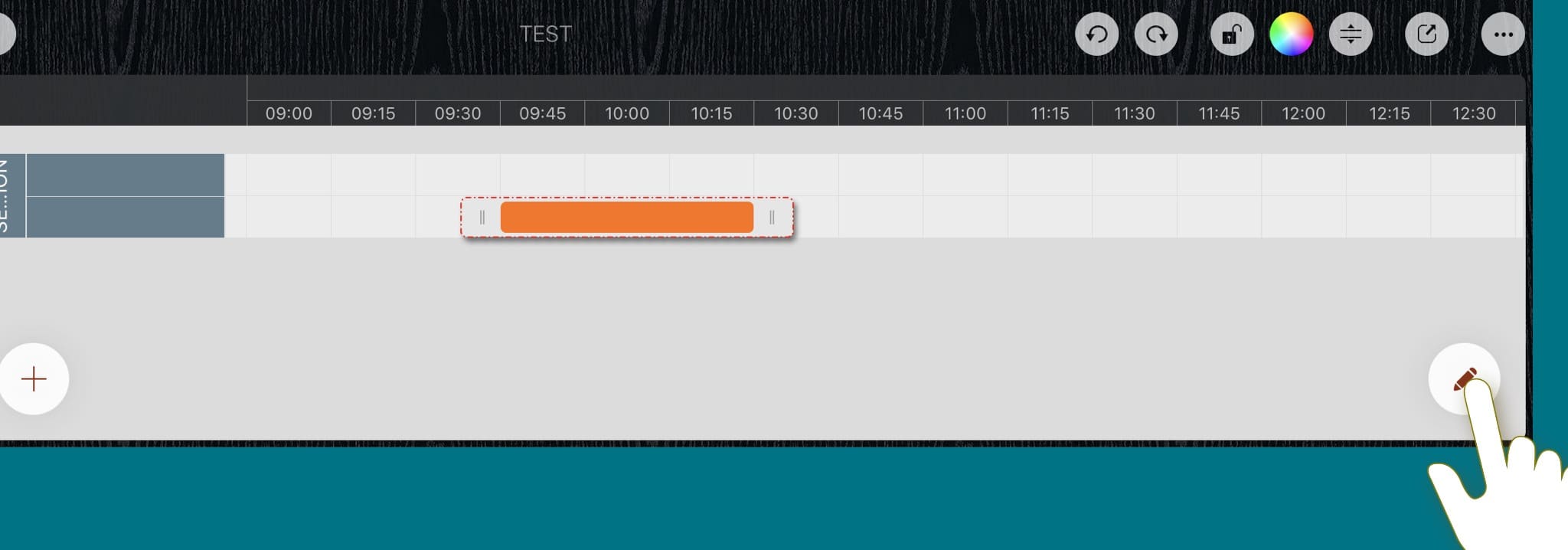
Tap the Edit button visible in the lower right corner when a task is selected, display the inspectors, and edit the task properties in the inspectors.
-
Alternatively, you can double-tap a task to display the inspectors.
-
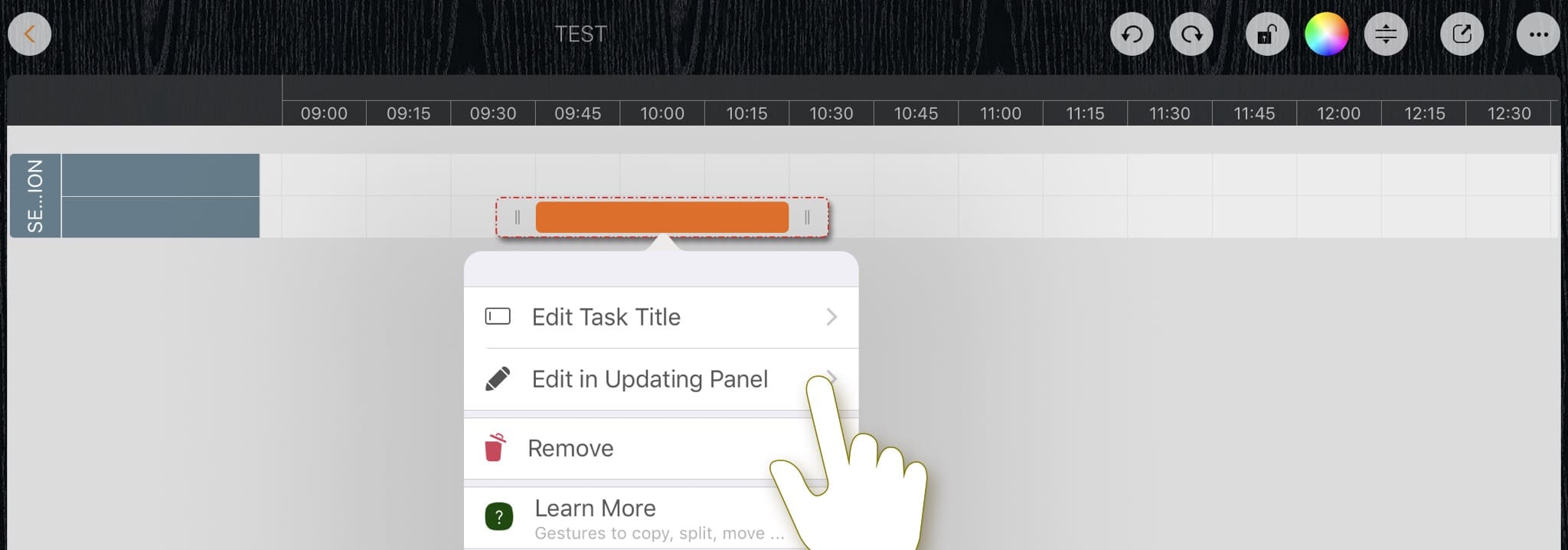
Alternatively, you can display the inspectors using the context menu (tap the selected task again to display the context menu).
Directly Edit Task Title
-
When a task is being selected, press the "Return" key to edit the task title directly.
-
Alternatively, you can double-tap a task to edit the task title directly if you configure a double-tap operation to change the task title. See the next section on customizing the double-tap operation.
-
Alternatively, you can edit the title using the "Edit Task Title" button in the context menu.
Remove Task
-
When a task is selected, press the "Delete" button to remove the task directly.
-
Alternatively, use the "Remove" button in the context menu.
-
Alternatively, in drawing mode, swipe left and down from a task quickly to remove it.
Create Section and Row
-
Create section and row via the context menu.
-
If you create a new task in drawing mode and the position of the new task is below a section, the app also creates a new row or section, up to the distance of the newly created task from the section.
-
In the standard mode, when copying a task, if the target position is not in an existing section, the app also creates a new row or section to contain the newly created task, up to the distance of the newly copied task from the section above it.
Move Section
-
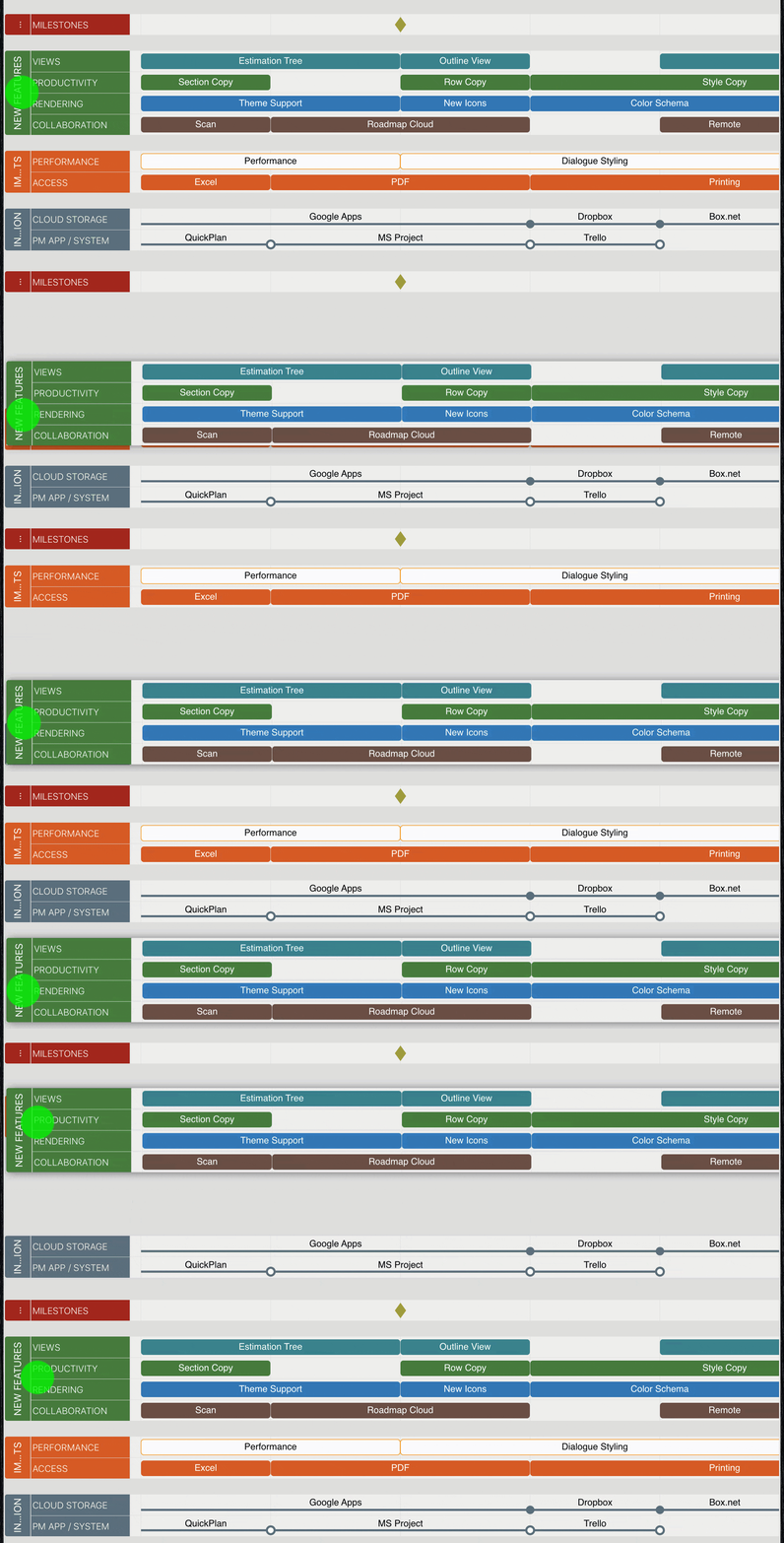
Gesture: Hold down on the section area of a track, then move up/down to move the section.
-
Keyboard Shortcut: ⌘ ↓,↑ (Command + Up/Down Arrow Key)
-
Or via the section related context menu
Move Row
-
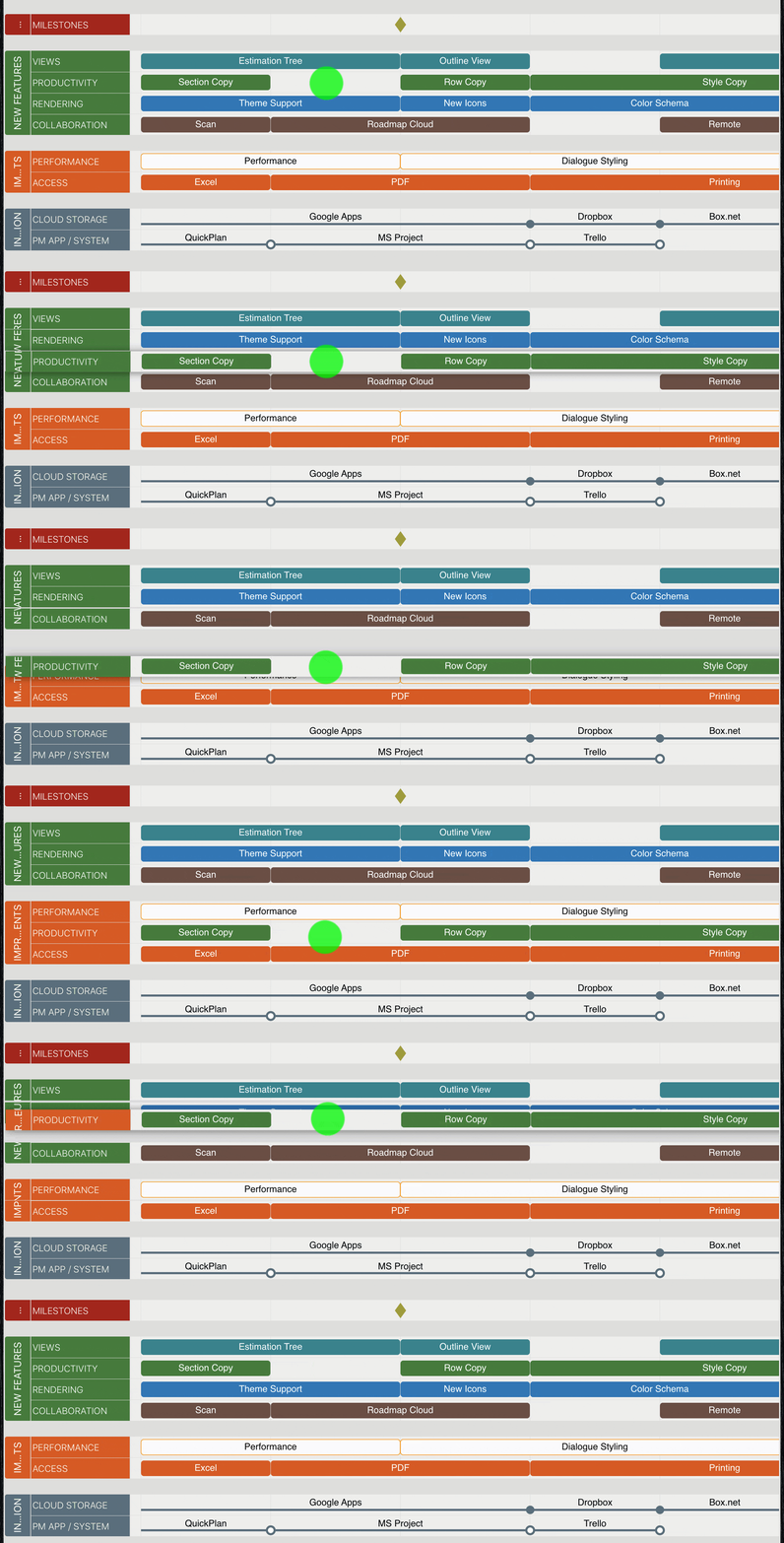
Press and hold a row, then move up/down to move the row.
-
Alternatively, use the row-related context menu.
2026 © COPYRIGHT SWIFT APPS | All Rights Reserved